
Dreame Vacuum Plugin

| Developer: | Glenn's Plugins Like this plugin? Show your appreciation! |
| Category: | Miscellaneous |
| Github: | Github Repo |
| Assistance: | Get help! Check the online documentation |
| Plugin ID: | com.GlennNZ.indigoplugin.dreame_vacuum |
| Latest release: | v2025.1.46 released on July 11, 2026 |
| Release downloaded: | 41 times |
| Requires: | Indigo v2025.2.0 or higher |
| (Check the Releases tab below for older releases that may have different requirements) | |
| Download latest release |
Dreame-Indigo

An Indigo Domotics plugin to control and monitor Dreame robotic vacuums (and compatible Xiaomi / Dreame / Mova family models) from your Indigo home automation server.
This plugin takes a lot of inspiration and protocol knowledge from the Home Assistant custom component:
https://github.com/Tasshack/dreame-vacuum/tree/main/custom_components/dreame_vacuum
Most of the hard work in understanding Dreame devices was done there. If you find this Indigo plugin useful, please consider supporting the original project – you’ll find a donation link in that repository and are warmly encouraged to donate there if you wish.
Important Disclaimer
This plugin currently works for my own purposes and devices. I’ve realised I am uncertain how much time I will have to:
- Debug issues on different account types (Dreame / Mi Home / Mova)
- Chase login/2FA changes
- Handle model‑specific quirks for devices I don’t personally own
I’ll do what I reasonably can, but there is no guarantee that all models, regions, or login types will be supported or kept working over time.
Dreame
- Aqua 10 Pro Track –
dreame.vacuum.r2527b, r2527j, r2527t, r2527u - Aqua10 Roller –
dreame.vacuum.r9533a, r9533h, r9533t - Aqua10 Ultra Roller –
dreame.vacuum.r9535a, r9535h - Aqua10 Ultra Roller Complete –
dreame.vacuum.r95475, r9547a, r9547c, r9547h, r9547k - Aqua10 Ultra Track –
dreame.vacuum.r2527a, r2527h - Aqua10 Ultra Track Complete –
dreame.vacuum.r95285, r9528a, r9528h - Aqua10 Ultra Track S –
dreame.vacuum.r2527g, r2527q - C20 Plus –
dreame.vacuum.r2423a - C9 –
dreame.vacuum.r2260 - D10 Plus –
dreame.vacuum.r2205 - D10 Plus Gen 2 –
dreame.vacuum.r2423 - D10s –
dreame.vacuum.r2243 - D10s Plus –
dreame.vacuum.r2240 - D10s Pro –
dreame.vacuum.r2250 - D15 / D15 Plus –
dreame.vacuum.r9523c, r9523k, r9524c, r9524k - D20 / D20 Plus / D20 Pro / D20 Pro Plus / D20 Ultra –
dreame.vacuum.r2563b, r2563v, r2564b, r2564z, r2565a, r2565v, r2566a, r2566h, r2562h, r9507b - D9 / D9 Max / D9 Max Gen 2 / D9 Plus / D9 Pro –
dreame.vacuum.p2009, p2259, r2312, r2312a, r2422, r2422a, r2422b, r2322, p2187 - F10 / F10 Plus –
dreame.vacuum.r9523a, r9523h, r9524a, r9524h - GoVac 200 / 200 lite / 300 / 400 / 400 Complete / 500 / 600 – various
dreame.vacuum.r9524b, r9523b, r2564s, r2562s, r2562u, r25799, r9493c - L10 / L10 Plus / Prime / Pro / Ultra / L10s variants – wide range of
dreame.vacuum.r22xx,p20xxmodels - L20 Ultra / L20 Ultra Complete / L20s Pro –
dreame.vacuum.r2253*, r2338*, r2394* - L30 / L30s / L40 / L40s / L50 families –
dreame.vacuum.r23xx, r24xx, r25xx, r94xx, r95xx, r53xx - Master One / Master Pro –
dreame.vacuum.r2310a, r2310 - Matrix10 Ultra –
dreame.vacuum.r2513* - P10s Pro –
dreame.vacuum.r2462 - S10 / S10 Plus / S10 Pro / S10 Pro Plus / S10 Pro Ultra / S20 / S20 Plus / S20 Pro / S20 Pro Plus / S20 Ultra / S30 / S30 Pro / S30 Pro Ultra / S30 Ultra Member / S40 / S40 Pro / S40 Pro Ultra / S50 / S50 Pro / S50 Ultra – extensive
dreame.vacuum.r22xx–r25xx, r94xx–r95xxrange - W10 / W10 Pro / W10s / W10s Pro / W20 / W20 Pro / W20 Pro Ultra –
dreame.vacuum.p2027, r2104, r2251o, r2232a, r2317, r2345a, r2345h - X10 / X10 Ultra / X20 Pro / X20 Pro Plus / X30 / X30 Master / X30 Pro / X30 Ultra / X30s Pro / X40 / X40 Master / X40 Pro / X40 Pro Plus / X40 Pro Ultra / X40 Ultra / X40 Ultra Complete / X50 family –
dreame.vacuum.r22xx–r25xx, r93xx–r95xx - Many regional/edition variants with “Enhanced”, “Ultra-Thin embedded”, “Complete”, “Member”, etc.
MOVA (examples)
- 10 Robot Vacuum and Mop –
dreame.vacuum.r2388 - E10 / E20 / E20 Plus / E20s Pro / E20s Pro Plus –
dreame.vacuum.r2438*, r2458*, r2459*, mova.vacuum.r2569c, r2567a - E30 Ultra / E40 Ultra –
dreame.vacuum.r2427*, mova.vacuum.r9504a - G20 / G20 Master / G20 Pro / G30 / G30 Pro –
dreame.vacuum.r2350, r2212, r2385, r2435, r2455 - L600 –
dreame.vacuum.p2157 - M1 –
dreame.vacuum.r2380 - P10 / P10 Pro / P10s Ultra / P20 Ultra / P50 Pro Ultra / P50 Ultra / P50s Ultra –
mova.vacuum.r24xx–r25xx, dreame.vacuum.r9406, r2491 - S10 / S10 Plus –
dreame.vacuum.r2382*, r2383* - V30 / V30 Pro / V50 Ultra (+ Complete) –
dreame.vacuum.r2432, r9420, mova.vacuum.r2525*, r2582* - Z50 Ultra / Z500 / Z60 Ultra Roller Complete –
mova.vacuum.r2430*, dreame.vacuum.p2156o, mova.vacuum.r9540n - 免洗10 –
dreame.vacuum.r2386
Mijia (examples)
- 1S / 1T / 2C –
dreame.vacuum.r2254, p2041, p2140, p2140a - Cleaning And Mopping Robot 2 Pro –
dreame.vacuum.r2210 - F9 –
dreame.vacuum.p2008 - M40 –
xiaomi.vacuum.d110ch - Mi Robot Vacuum-Mop / 2 / 2 Pro+ / 2 Ultra / 2 Ultra Set –
dreame.vacuum.p2150o, p2140o, p2140p, p2140q, p2041o, p2150a, p2150b - Mop Ultra Slim –
dreame.vacuum.p2148o - Omni 2 / Omni M30S –
xiaomi.vacuum.c102cn, d103cn - S10+ –
dreame.vacuum.r2211o - Self-Cleaning Robot Vacuum-Mop / Pro –
dreame.vacuum.p2114o, p2149o - X10 / X10+ / X20+ –
dreame.vacuum.r2209, p2114a, xiaomi.vacuum.c102gl
TROUVER (examples)
- E10 –
dreame.vacuum.r2438r - E30 Ultra –
dreame.vacuum.r2427c, r2427r - LDS Finder –
dreame.vacuum.p2036 - M1 –
dreame.vacuum.r2380r - S10 –
dreame.vacuum.r2382r
Unsupported (examples)
Devices explicitly unsupported by the upstream integration include:
- Dreame 1C / 2C / 3C variants –
dreame.vacuum.ma1808, md1808, mb1808, mc1808, ijai.vacuum.v18 - Many Xiaomi/Mijia “E”, “H”, “M”, “S”, “T”, “Vacuum-Mop” series –
xiaomi.vacuum.*,ijai.vacuum.*,deerma.vacuum.* - Several “Vacuum-Mop 2/2 Lite/2 Pro/2 Pro+/2S/2i/Pro” models
- X20 / X20 Max / X20 Pro / X70 –
xiaomi.vacuum.c101eu, d109gl, d102gl, deerma.vacuum.a2404 - Regional variants with Chinese names
人 2,人 3, etc.
If your vacuum is not in the “supported” section or is explicitly listed as “unsupported”, this plugin may not work for it.
Features
- Control Dreame vacuums directly from Indigo:
- Start, pause, stop, and dock
- Clean specific rooms / segments
- Clean specified zones
- Run shortcuts/favourites
- Adjust fan speed and water volume (where supported)
- Trigger base / station functions (wash, dry, drain, etc.)
- Monitor detailed vacuum and base status through Indigo device states:
- Battery, status, modes, base state, consumables, maps, rooms, and more
- Generate up-to-date map PNGs suitable for use on Indigo Control Pages
Installation
-
Download
-
Double Click the
Dreame Indigo.indigoPlugin -
In Indigo, go to:
- Devices → New… → Type: Dreame Indigo → Model: ⚪️ Dreame Vacuum to create a vacuum device
Device Configuration
The Dreame Vacuum Indigo device (id="dreame_vacuum") is configured via its Config UI.
Login Mode
You can connect to your Dreame vacuum using either cloud or (where still possible) local mode:
- Login Mode (
loginMode)Cloud (Mi/Dreame/Mova Account)– recommended and required for most new devicesLocal (IP + token)– often disabled by newer firmware unless using custom firmware
When local is selected, a blue note reminds you:
It seems local is essentially disabled on all new devices, without custom firmware.
Cloud Account Type
For cloud mode, choose which account type you are using:
- Cloud Account Type (
accountType, visible only whenloginMode = cloud)Dreame account– direct Dreame cloud accountXiaomi / Mi Home account– uses your Mi account; supports 2FA/captcha via the Dreame libraryMovaHome account– uses Mova-specific Dreame cloud endpoints
A short description explains:
- Dreame: direct Dreame cloud account
- Xiaomi / Mi Home: Mi account with 2FA support
- MovaHome: Mova cloud endpoints
Cloud Credentials
- Account Email / Username (cloud mode) (
username) - Password (cloud mode) (
password, secure) - Country Code (
country, defaulteu) Example values:eu,us,cn,sg
Local Credentials (if applicable)
Visible only when loginMode = local:
- Local IP / Host (local mode) (
host) - Local device token (local mode) (
token)
Device Selection
- Specific Device ID (optional) (
dreame_device_id) If left blank, the plugin will use the first Dreame vacuum found on the account. If you have multiple Dreame vacuums, you can target a specific one by entering its device ID.
Two-Factor Authentication (Mi Home)
When using Xiaomi / Mi Home (accountType = mihome), a simple 2FA helper is provided.
- Use Two-Factor Authentication (
dreameTwoFAEnabled, checkbox) Enable this to use Xiaomi / Mi Home 2FA.
When 2FA is enabled:
- Login Dreame / Mi Cloud (
dreameLoginDevice, button)- Attempts a cloud login with the current username/password/country.
- Triggers sending of a verification code where required.
- Verification Code (
dreameVerificationCode, textfield)- Enter the 2FA code sent by Xiaomi / Mi.
- Submit Code (
dreameSubmitCode, button)- Sends the code back to complete login.
- Cloud Login Status (
dreameLoginInfo, read-only textfield)- Shows the result of the last login or 2FA attempt.
Map Updates
- Enable map updates while cleaning (
enableMappingUpdates, checkbox) When enabled and the vacuum is active, the plugin will periodically (about every 15 seconds) request map data while cleaning and save it to your Pictures directory as PNG files. See Map Snapshots and Control Pages below.
Relay / External Control Behaviour
The device supports mapping On/Off to actions, making it easy to integrate with external control (e.g. Alexa, Home App via HomeKitLink).
- On Device On (
relayOnAction, defaultstart_clean)- What should happen when this device is turned ON:
Start CleaningRun Shortcut (select below)
- What should happen when this device is turned ON:
- On: Shortcut to run (
relayOnShortcut) Visible only whenrelayOnAction = shortcut. Populated dynamically via the device’s shortcut menu.
- On Device Off (
relayOffAction, defaultdock)- What should happen when this device is turned OFF:
Return to DockPause CleaningStop CleaningRun Shortcut (select below)
- What should happen when this device is turned OFF:
- Off: Shortcut to run (
relayOffShortcut) Visible only whenrelayOffAction = shortcut.
A blue description label clarifies:
These options control what happens when On, Off and Toggle is called by Indigo or an external device such as Alexa or Home App via (HomekitLink plugin).
Reported Device States
The Dreame Vacuum device exposes a rich set of Indigo states. These can be used for Triggers, Conditionals, and Control Page display.
All state IDs below are defined on the dreame_vacuum device.
Core Status
- status (
String) High-level status summary (e.g., “Cleaning”, “Docked”, “Paused”, etc.).
- battery (
Number) Battery percentage (%).
- fan_speed (
String) Current fan speed / suction setting.
- area_cleaned_m2 (
Number) Area cleaned in square metres for the current/last task.
- duration_min (
Number) Cleaning duration in minutes for the current/last task.
- shortcuts (
String) Summary / list of available shortcuts (favourites) discovered for the device.
- charging (
Boolean) Whether the vacuum is currently charging.
- error_text (
String) Text description of any current error or alert, when available.
- last_update (
String) Timestamp of the last successful state update.
Detailed Robot / Base State
- robot_state (
String) Overall robot state (e.g., idle, cleaning, returning).
- robot_state_detail (
String) More detailed robot state description.
- station_state (
String) Base / docking station state.
- task_status (
String) Status of the current cleaning task.
- cleaning_mode (
String) Current cleaning mode: full, room, zone, etc. (as supported by the device).
Cleaning Parameters
- water_volume (
Integer) Current water level setting.
- mop_wetness_level (
Integer) Mop wetness level.
- cleaning_progress (
Integer) Cleaning progress as a percentage (%).
Base / Self-Wash / Drying
- self_wash_base_status (
String) Status of the base’s self-wash system.
- drying_progress (
Integer) Drying progress percentage for the base.
- auto_empty_status (
String) Auto-empty (dustbin) status.
- station_drainage_status (
String) Drainage status of the base (e.g., draining, idle).
- combined_status (
String) A combined / synthesized status string summarising key states.
- water_temperature (
String) Water temperature as reported by the base (string form).
Consumables / Health
- main_brush_left (
Integer) Main brush life remaining (%).
- side_brush_left (
Integer) Side brush life remaining (%).
- filter_left (
Integer) Filter life remaining (%).
- dirty_water_tank_left (
Integer) Dirty water tank capacity remaining (%).
- scale_inhibitor_left (
Integer) Scale inhibitor life remaining (%).
AI / Mapping Capabilities
- ai_obstacle_detection (
Boolean) Whether AI obstacle detection is supported/enabled.
- ai_pet_detection (
Boolean) Whether AI pet detection is supported/enabled.
Map / Room Metadata
- map_list (
String) Summary list of available maps on the device.
- current_map_id (
Integer) Identifier for the current map.
- multi_floor_map (
Boolean) Whether multi-floor mapping is enabled.
- mapping_updates_enabled (
Boolean) Whether mapping updates (map polling) are enabled in the device configuration.
- selected_map (
String) Name of the current / selected map.
- room_list (
String) Summary of rooms known to the map.
- current_room (
String) Name of the room the vacuum is currently in (if available).
- current_segment_id (
Integer) Current segment/room ID.
- cleaning_sequence (
String) Sequence/order of rooms/segments being cleaned.
Raw Vacuum State
- vacuum_state (
String) Lower-level/raw vacuum state (e.g., sweeping, mopping, etc.) as reported by the device.
The UI display state for the device in Indigo is set to status.
Plugin Actions
The plugin defines a set of Indigo Actions that can be used in Action Groups, Schedules, and Triggers. All actions use deviceFilter="self" so they appear against the Dreame Vacuum device.
Basic Vacuum Controls
- Start Cleaning (
start_clean) Starts a standard cleaning run.
- Start / Pause (
start_pause) Toggles between starting and pausing cleaning.
- Stop Cleaning (
stop_clean) Stops the current cleaning task.
- Pause Cleaning (
pause_clean) Pauses the current cleaning operation.
- Return to Base (
return_to_base_action) Sends the vacuum back to its dock/base.
- Locate Vacuum (
locate_vacuum) Triggers the “locate” function (typically causes the robot to play a sound to help you find it).
Fan Speed and Shortcuts
-
Set Fan Speed (
set_fan_speed) Presents a simple menu:SilentStandardStrongTurbo
The plugin maps this choice to the appropriate Dreame fan power/suction setting.
-
Start Shortcut (Favourite) (
start_shortcut) Allows selecting and running one of the device’s saved shortcuts/favourites.shortcutMenu– a dynamic menu (List class="self" method="shortcut_menu") filled by the plugin based on the vacuum’s configured shortcuts.
Room / Segment Cleaning
-
Clean Selected Rooms (Segments) (
clean_segments) Cleans one or more segments/rooms by numeric segment ID.Config fields:
Segment IDs (comma-separated)(segments) Example:2,3,5Repeats(repeats, default1) Number of times to clean these segments.Suction level (enum or numeric)(suction_level) Optional – leave blank to use current setting.Water volume (enum or numeric)(water_volume) Optional – leave blank to use current setting.
-
Clean Room (
clean_room) Cleans a single room chosen by name/segment from a dynamic menu.Config fields:
Room to clean(roomMenu) Dynamic menu populated byroom_menu, showing known rooms.Repeats(repeats, default1) How many times to clean that room.
-
Custom Clean Room (
custom_clean_room) More advanced, per-room cleaning with parameters:Config fields:
Room(roomMenu) Dynamic list fromroom_menu.Suction Level(suction_level, menu; defaultstandard)quietstandardstrongturbo
Water Volume(water_volume, menu; default2)1(Low)2(Medium)3(High)
Repeats(repeats, menu; default1)1,2, or3
Cleaning Mode (optional)(cleaning_mode, menu)(Device default)Vacuum only(sweep)Mop only(mop)Vacuum and mop(sweep_mop)
Wetness Level (optional)(wetness_level, menu)(Device default)1(Low)2(Medium)3(High)
Zone Cleaning
-
Clean Zone(s) (
clean_zones) Cleans one or more rectangular zones defined in the robot’s coordinate system.Config fields:
Zones (rectangles)(zones)- Format:
x1,y1,x2,y2; x1,y1,x2,y2; ...
- Format:
Repeats(repeats, default1)
Map and Wi-Fi Map Snapshots
- Save Map Snapshot to Pictures (
save_map_snapshot) Captures the current cleaning map (when available) and saves a PNG into your Pictures directory. Intended for easy use on Indigo Control Pages (see below).
- Save WiFi Map Snapshot (
save_wifi_map_snapshot) Saves a Wi-Fi map snapshot (when supported by the device) to the Pictures directory, again as PNG.
- Export Map Resources (PNG/Fonts) (
export_map_resources, hidden action) For internal / advanced usage. Exports base PNG/font resources required for rendering maps. Usually run once, if needed.
Base / Station Operations
These actions control the Dreame base/station (for models with self-wash/dry/drain features):
- Start Washing (Base) (
start_washing) Starts base self-wash.
- Pause Washing (Base) (
pause_washing) Pauses base self-wash.
- Start Drying (Base) (
start_drying) Starts drying operation at the base.
- Stop Drying (Base) (
stop_drying) Stops base drying.
-
Start Draining (Base) (
start_draining) Initiates a drainage cycle for the base.Config fields:
Also empty clean water tank (if supported)(cleanWaterTank, checkbox) When enabled, requests drainage of both dirty and clean water tanks (for models that support this).
Map Snapshots and Control Pages
Example Map Images
The map handling and visual style is based on the upstream integration. These examples from that project give a good idea of what the generated maps and live cleaning views look like:
- Static live map example:
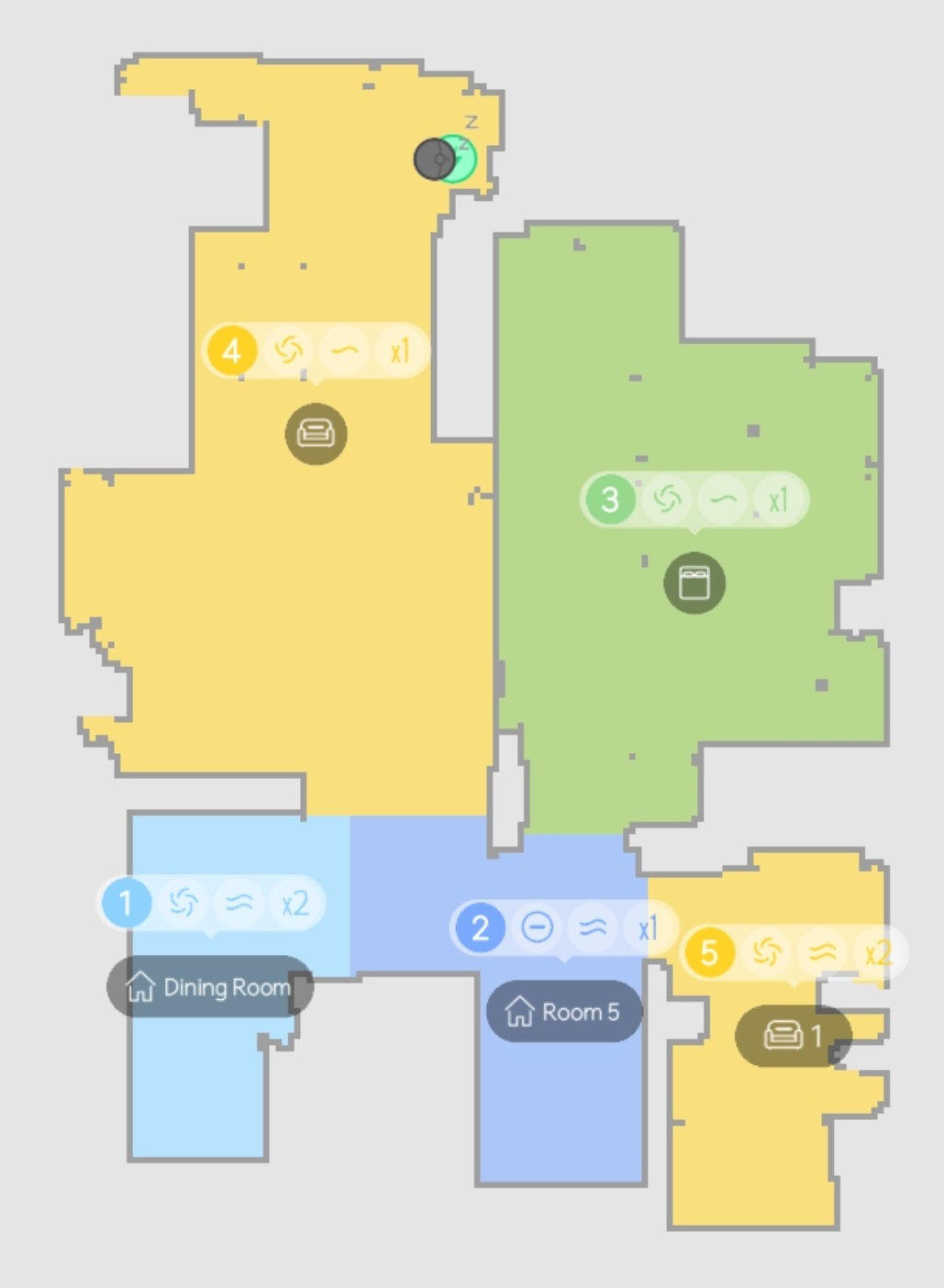
- Live cleaning progress example (animated):
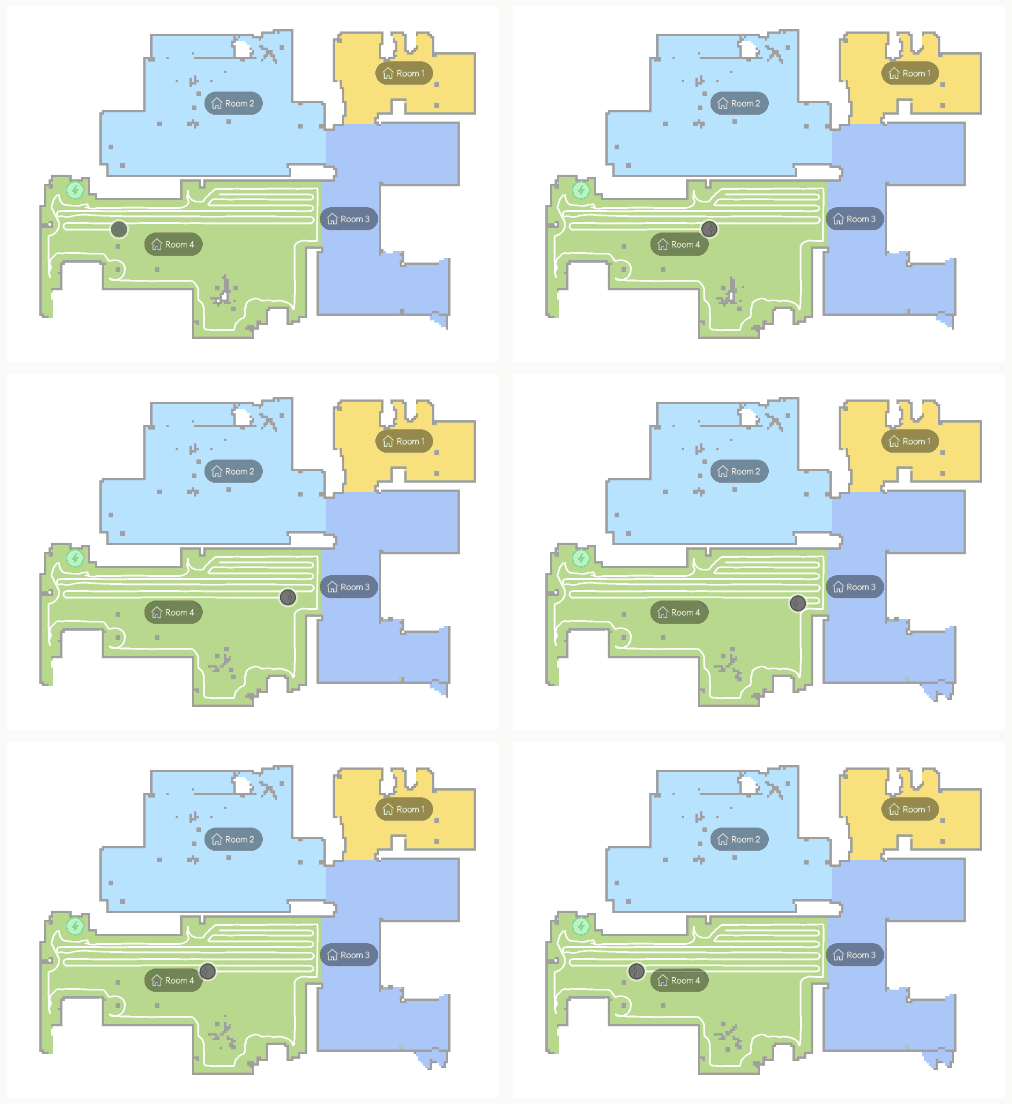
Your actual rendered PNGs may differ in layout or overlay detail, but the goal is similar: a clean, readable map with robot position and cleaned regions, suitable for embedding into Indigo Control Pages.
One key feature of this plugin is automatic map snapshot generation for use on Indigo Control Pages.
How Map Snapshots Work
There are two related mechanisms:
-
Live Map Polling (during cleaning)
- If Enable map updates while cleaning is checked on the device (
enableMappingUpdates = true), the plugin:- Periodically (about every 15 seconds) requests map data from the Dreame device while it is actively cleaning.
- Renders this data into PNG images and saves them into the Pictures directory.
- This gives you a near real-time view of the robot’s map and position.
- Add this to a Control page and use refreshing URL with file://users/indigo/Pictures/Dream-inmage-map-22342.png and receieve constant updates 2. On-Demand Snapshots
- The Save Map Snapshot to Pictures action (
save_map_snapshot) can be called manually or via an Action Group to:- Force a map fetch
- Render it as a PNG
- Save it into Pictures (often with a timestamped or consistent filename, depending on implementation)
- Save WiFi Map Snapshot (
save_wifi_map_snapshot) works similarly for Wi-Fi maps when supported.
- If Enable map updates while cleaning is checked on the device (
The plugin also has an internal Export Map Resources action that can export supporting PNGs and fonts if needed for map rendering; normally you should not need to run this repeatedly.
Using Map PNGs on Indigo Control Pages
Once map PNGs are being written into your Pictures directory:
- In Indigo, open Control Pages.
- Create or edit a Control Page.
- Add a new Image element.
- Point it at the map PNG within your Pictures folder.
- Optionally:
- Use Control Page refresh features or periodic reloads to keep the map view fresh while the robot is cleaning.
- Combine the image with device states like
status,cleaning_progress,battery, andcurrent_roomfor a full overview.
Because the plugin maintains up-to-date map images while the vacuum is running (if enabled), your Control Page can provide a live-ish view of the cleaning progress, very similar to a native app map, without manual file handling.
Notes
- Actual feature availability depends on the specific Dreame model and its firmware (not all devices support self-wash, drying, drainage, Wi-Fi maps, AI detection, etc.).
- The plugin aims for a simple, robust design: it exposes commonly useful actions and states without over-complicating the interface.
- For model-specific quirks or limitations, refer to your Dreame device documentation and observe states in Indigo as the device operates.
| Released on: | July 11, 2026 |
| Requires: | Indigo v2025.2.0+ |
| Downloaded: | 41 times |
| Download this release | |
2025.1.46
Specific library dependencies to hopefully avoid build errors downstream (needing rust, openssl etc)
| v2025.1.45 | Requires Indigo v2025.1.0+ | Released Feb. 14, 2026 | Indigo 2025.2 Version for Library Install. Fixes |
| Released on: | Feb. 14, 2026 |
| Requires: | Indigo v2025.1.0+ |
| Downloaded: | 47 times |
| Download this release | |
Dreame-Indigo 2025.1.45
Changes:
Returns Library install to Indigo (Menu item - for manual install which should NOT be needed)
| v2025.1.35 | Requires Indigo v2025.1.0+ | Released Jan. 31, 2026 | Update Libraries. More model support. Manual library install fix |
| Released on: | Jan. 31, 2026 |
| Requires: | Indigo v2025.1.0+ |
| Downloaded: | 72 times |
| Download this release | |
Dreame-Indigo 2025.1.35
Changes:
Refactor on / off docked washing drying type states
Add a truck ton of states
Update Dreame library to beta21 supporting new vacuums
Update code for beta21 Dreame Library breaking changes... May still be more.,..
Let indigo create Packages directory hopefully helping quarantine
Manually install library to see where env variables are causing issues. Fixes library compile error introduced in OSX 10.14, hopefully soon to be fixed in new Indigo version. (Once new indigo version will revert changes and once again use requirements.txt)
Model support by Library: (Extensive)
https://github.com/Tasshack/dreame-vacuum/blob/dev/docs/supported_devices.md
Initial public release of Dreame-Indigo, an Indigo Domotics plugin for controlling and monitoring modern Dreame / Xiaomi / Mijia / MOVA / TROUVER robot vacuums that are supported by the upstream Dreame Home Assistant integration.
Summary
Dreame-Indigo connects your Dreame‑family robot vacuum to Indigo as a single Dreame Vacuum device, exposing:
- Core controls: start, pause, stop, return to base, locate robot
- Room / zone / segment cleaning including custom per‑room parameters
- Shortcuts/favourites (start named cleaning presets)
- Base / station functions (self‑wash, drying, draining, auto‑empty – where supported)
- Rich state reporting for status, cleaning progress, base status, consumables, and mapping
The plugin also generates up-to-date map PNGs that can be used directly on Indigo Control Pages to show a near live view of the robot and cleaned areas.
This plugin is deliberately simple and modelled on the excellent upstream Home Assistant custom component:
https://github.com/Tasshack/dreame-vacuum/tree/main/custom_components/dreame_vacuum
If you find this Indigo plugin useful, please consider supporting the original project – there is a donation link in that repository.
Supported models (high‑level)
Support is driven by the same Dreame/Mi library as the upstream project. In broad terms, this includes many:
- Dreame models:
- D‑series (D9 / D9 Max / D10 / D10s / D15 / D20 families)
- L‑series (L10 / L10s / L20 / L30 / L40 / L50 families)
- S‑series (S10 / S20 / S30 / S40 / S50 families, including Ultra / Pro / Plus variants)
- W‑series (W10 / W10 Pro / W10s / W20 etc.)
- X‑series (X10 / X20 / X30 / X40 / X50 and their “Ultra”, “Pro”, “Complete”, “Enhanced” editions)
- Aqua10, GoVac, Matrix10, Master, and many regional variants
- MOVA branded Dreame devices:
- E‑series, G‑series, P‑series, S‑series, V‑series, Z‑series, L600, M1 and others
- Mijia / Xiaomi models backed by Dreame hardware:
- Vacuum‑Mop families (Mi Robot Vacuum‑Mop, 2, 2 Pro+, 2 Ultra, 2 Ultra Set, Mop Ultra Slim, etc.)
- “Cleaning and Mopping Robot 2 Pro”
- S10+ and several Omni / X‑series variants
- TROUVER models that are Dreame‑based:
- E10, E30 Ultra, LDS Finder, M1, S10
The plugin does not support older or non‑Dreame hardware such as many ijai.vacuum.*, xiaomi.vacuum.*, or deerma.vacuum.* models that are explicitly marked unsupported in the upstream list (e.g. Vacuum‑Mop 2 / 2 Lite / 2 Pro / 2S / 2i, various 1C/2C/3C variants, some X20/X70, etc.).
Exact support and feature availability (self‑wash, drying, drainage, AI obstacle/pet detection, Wi‑Fi maps, etc.) depend on the specific model and its firmware.
Key features
Control
- Start / stop / pause cleaning
- Toggle start/pause with a single action
- Return to dock / base
- Locate robot (play sound)
- Set fan speed: Silent, Standard, Strong, Turbo
- Run device shortcuts/favourites
- Clean:
- Specific rooms via a room menu
- Arbitrary segments by ID (comma‑separated list)
- Arbitrary rectangular zones (x1,y1,x2,y2 format)
- “Custom Clean Room”:
- Per‑room suction level
- Water volume
- Cleaning mode (vacuum only / mop only / vacuum + mop)
- Wetness level
- Repeat passes
- Base / station actions:
- Start / pause washing
- Start / stop drying
- Start draining, with optional clean‑water‑tank drain (when supported)
Status & telemetry
The Indigo device exposes a comprehensive set of states, including:
- High‑level status, robot/base state, task status, cleaning mode
- Battery %, fan speed, area cleaned (m²), duration (minutes)
- Charging flag, error text, last update timestamp
- Cleaning progress %, water volume, mop wetness
- Base/self‑wash/drying/auto‑empty/drainage status and progress
- Consumable life (%): main brush, side brush, filter, dirty water tank, scale inhibitor
- AI features: obstacle detection / pet detection flags
- Mapping metadata:
- Available maps, current map ID, selected map name
- Multi‑floor enabled, mapping updates enabled
- Room list, current room, current segment ID, cleaning sequence
- Raw vacuum state (sweeping, mopping, etc.)
Map PNG generation
- Optional live map updates while cleaning:
- When enabled, the plugin polls map data roughly every 15 seconds during cleaning
- Renders the map and robot position to PNG files in the user’s Pictures directory
- On‑demand actions:
- “Save Map Snapshot to Pictures”
- “Save WiFi Map Snapshot”
- PNGs are designed for direct use on Indigo Control Pages as image elements, giving you a near real‑time map similar to the manufacturer app.
Usage outline
- Install
Dreame_Indigo.indigoPluginin Indigo. - Create a Dreame Vacuum device.
- Choose login mode:
- Cloud account: Dreame, Xiaomi/Mi Home, or Mova (with optional 2FA for Mi Home)
- Local IP + token (may be disabled on newer stock firmware)
- (Optional) enable map updates while cleaning for live maps.
- Configure how Indigo “On” and “Off” map to actions (start cleaning / dock / pause / stop / shortcut) to integrate nicely with Indigo, Alexa, HomeKit, etc.
- Use the provided actions in Action Groups, Schedules, and Triggers, and add the generated PNG maps to your Control Pages.
Disclaimer
This plugin currently works for my own purposes and devices. I am uncertain how much time I will have to:
- Debug issues for other regions and login types,
- Track upstream cloud/2FA changes,
- Handle model‑specific quirks for hardware I don’t own.
I’ll fix what I can, but there is no guarantee that all supported‑list models or account types will continue to work, especially over time as vendors change APIs and firmware.
| Released on: | Nov. 23, 2025 |
| Requires: | Indigo v2025.1.0+ |
| Downloaded: | 73 times |
| Download this release | |
Dreame-Indigo 2025.1.15
Initial public release of Dreame-Indigo, an Indigo Domotics plugin for controlling and monitoring modern Dreame / Xiaomi / Mijia / MOVA / TROUVER robot vacuums that are supported by the upstream Dreame Home Assistant integration.
Summary
Dreame-Indigo connects your Dreame‑family robot vacuum to Indigo as a single Dreame Vacuum device, exposing:
- Core controls: start, pause, stop, return to base, locate robot
- Room / zone / segment cleaning including custom per‑room parameters
- Shortcuts/favourites (start named cleaning presets)
- Base / station functions (self‑wash, drying, draining, auto‑empty – where supported)
- Rich state reporting for status, cleaning progress, base status, consumables, and mapping
The plugin also generates up-to-date map PNGs that can be used directly on Indigo Control Pages to show a near live view of the robot and cleaned areas.
This plugin is deliberately simple and modelled on the excellent upstream Home Assistant custom component:
https://github.com/Tasshack/dreame-vacuum/tree/main/custom_components/dreame_vacuum
If you find this Indigo plugin useful, please consider supporting the original project – there is a donation link in that repository.
Supported models (high‑level)
Support is driven by the same Dreame/Mi library as the upstream project. In broad terms, this includes many:
- Dreame models:
- D‑series (D9 / D9 Max / D10 / D10s / D15 / D20 families)
- L‑series (L10 / L10s / L20 / L30 / L40 / L50 families)
- S‑series (S10 / S20 / S30 / S40 / S50 families, including Ultra / Pro / Plus variants)
- W‑series (W10 / W10 Pro / W10s / W20 etc.)
- X‑series (X10 / X20 / X30 / X40 / X50 and their “Ultra”, “Pro”, “Complete”, “Enhanced” editions)
- Aqua10, GoVac, Matrix10, Master, and many regional variants
- MOVA branded Dreame devices:
- E‑series, G‑series, P‑series, S‑series, V‑series, Z‑series, L600, M1 and others
- Mijia / Xiaomi models backed by Dreame hardware:
- Vacuum‑Mop families (Mi Robot Vacuum‑Mop, 2, 2 Pro+, 2 Ultra, 2 Ultra Set, Mop Ultra Slim, etc.)
- “Cleaning and Mopping Robot 2 Pro”
- S10+ and several Omni / X‑series variants
- TROUVER models that are Dreame‑based:
- E10, E30 Ultra, LDS Finder, M1, S10
The plugin does not support older or non‑Dreame hardware such as many ijai.vacuum.*, xiaomi.vacuum.*, or deerma.vacuum.* models that are explicitly marked unsupported in the upstream list (e.g. Vacuum‑Mop 2 / 2 Lite / 2 Pro / 2S / 2i, various 1C/2C/3C variants, some X20/X70, etc.).
Exact support and feature availability (self‑wash, drying, drainage, AI obstacle/pet detection, Wi‑Fi maps, etc.) depend on the specific model and its firmware.
Key features
Control
- Start / stop / pause cleaning
- Toggle start/pause with a single action
- Return to dock / base
- Locate robot (play sound)
- Set fan speed: Silent, Standard, Strong, Turbo
- Run device shortcuts/favourites
- Clean:
- Specific rooms via a room menu
- Arbitrary segments by ID (comma‑separated list)
- Arbitrary rectangular zones (x1,y1,x2,y2 format)
- “Custom Clean Room”:
- Per‑room suction level
- Water volume
- Cleaning mode (vacuum only / mop only / vacuum + mop)
- Wetness level
- Repeat passes
- Base / station actions:
- Start / pause washing
- Start / stop drying
- Start draining, with optional clean‑water‑tank drain (when supported)
Status & telemetry
The Indigo device exposes a comprehensive set of states, including:
- High‑level status, robot/base state, task status, cleaning mode
- Battery %, fan speed, area cleaned (m²), duration (minutes)
- Charging flag, error text, last update timestamp
- Cleaning progress %, water volume, mop wetness
- Base/self‑wash/drying/auto‑empty/drainage status and progress
- Consumable life (%): main brush, side brush, filter, dirty water tank, scale inhibitor
- AI features: obstacle detection / pet detection flags
- Mapping metadata:
- Available maps, current map ID, selected map name
- Multi‑floor enabled, mapping updates enabled
- Room list, current room, current segment ID, cleaning sequence
- Raw vacuum state (sweeping, mopping, etc.)
Map PNG generation
- Optional live map updates while cleaning:
- When enabled, the plugin polls map data roughly every 15 seconds during cleaning
- Renders the map and robot position to PNG files in the user’s Pictures directory
- On‑demand actions:
- “Save Map Snapshot to Pictures”
- “Save WiFi Map Snapshot”
- PNGs are designed for direct use on Indigo Control Pages as image elements, giving you a near real‑time map similar to the manufacturer app.
Usage outline
- Install
Dreame_Indigo.indigoPluginin Indigo. - Create a Dreame Vacuum device.
- Choose login mode:
- Cloud account: Dreame, Xiaomi/Mi Home, or Mova (with optional 2FA for Mi Home)
- Local IP + token (may be disabled on newer stock firmware)
- (Optional) enable map updates while cleaning for live maps.
- Configure how Indigo “On” and “Off” map to actions (start cleaning / dock / pause / stop / shortcut) to integrate nicely with Indigo, Alexa, HomeKit, etc.
- Use the provided actions in Action Groups, Schedules, and Triggers, and add the generated PNG maps to your Control Pages.
Disclaimer
This plugin currently works for my own purposes and devices. I am uncertain how much time I will have to:
- Debug issues for other regions and login types,
- Track upstream cloud/2FA changes,
- Handle model‑specific quirks for hardware I don’t own.
I’ll fix what I can, but there is no guarantee that all supported‑list models or account types will continue to work, especially over time as vendors change APIs and firmware.