
HomeKitLink Siri

| Developer: | Glenn's Plugins Like this plugin? Show your appreciation! |
| Category: | Hubs and Protocol Bridges |
| Github: | Github Repo |
| Assistance: | Get help! Check the online documentation |
| Plugin ID: | com.GlennNZ.indigoplugin.HomeKitLink-Siri |
| Latest release: | v0.8.45 released on Nov. 15, 2026 |
| Release downloaded: | 84 times |
| Requires: | Indigo v2024.2.0 or higher |
| (Check the Releases tab below for older releases that may have different requirements) | |
| Download latest release |
HomeKitLink Plugin

This plugin (HKLS) aims to allow you to create HomeKit Bridges, which you add your indigo devices to and allows control from within Homekit and Siri control of your setup Apps.
First install
Need Python3 supporting version of Indigo 2022.1+
Support Details: Forum: https://forums.indigodomo.com/viewforum.php?f=366 Github : https://github.com/Ghawken/HomeKitLink-Siri Plugin Store Link:
Download latest and greatest HomeKitLinkSiri indigoplugin file.
Now API 3.4 dependencies and xattr commands are not required.
Limitations
Only one indigo device, once only, can be published to any HomeKit Bridge.
Each Indigo HKLS bridge device can have a maximum of 95 devices published within it. Currently this is not enforced. This is on TODO list. If you are getting close, would suggest creating a new HomeKitLink bridge. The number of these bridges is unlimited.
Add new HomeKitLink bridge devices as needed to increase device count, or to manage devices eg. Some users have a bridge per room for example. Multiple bridges for the sake of it - likely best avoided, but shouldn't add to much overhead.
If you wish to publish seperate indigo devices but one physical device = no problem eg. motion, light sensors. If you wish the exactly same device eg. 2 dimmer devices to be available in homekit - potentially under different names this is not possible without some simple help. Simply use Masquerade plugin, or virtual devices and copy the device wished into a new device - use this new device within this plugin. Repeat as many times as wished.
Everything is user selectable - for example a physical light switch, can be a motion sensor, or occupancy sensor if you really want it to be - or a Doorbell linked to a camera stream that notifies you...
This leads to a bit of setup work, but once device is selected, and setup, saved, there should be no need ever to revisit. These details are also saved within Indigo, so migrate and move with indigo without problem.
If you break HomeKit by your poor device option - in the normal course of events you simply remove the device from the HomeKit bridge and start again..
Important: If you are changing a already published HomeKit device - eg. Switch to a Blind. That will cause issues with the HomeKit app who will expect the old device. You MUST remove the Switch device first, unpublish, Save, Save config and alllow bridge to restart. Check in HomeKit app that the switch is gone (should just disappear...) and then readd again as new device type.
Quick, Basic Setup
- Create a HomeKitLink Bridge device within Indigo - Create New, Select HomeKitLink and the Bridge type (there is only one option)
- Select a Indigo device to publish on this Bridge to HomeKit.
For this simple example lets just pick a Light Device Click the Checkbox Publish Device
Name the Device. This is the HomeKit name - Homekit automatically removes the Room name from front of device. Decide on your naming.
Select the HomeKit device Type. "Lightbulb". HomeKitLink will decide what type of Light your device should be automatically (from Color, to Dimmer, to switch only)
Please Button: ** Save Device **
Indigo's log - will communicate that device has been published.
Please SAVE in the Device's Config Dialog. (This will stop, start the HomeKitLink Bridge)
Name your newly created HomeKitLink Bridge something e.g HomeKitLink Bridge Lights
- Go to HomeKit app in iOS device
Use you existing Home, or create a new one
Press the Top Left + button
Select "Add Accessory"
Go to HomeKitLink Bridge Device above "HomeKitLink Bridge Lights"
Edit the Device
Click the Show QR Code button.
This should open a Webpage with a QR Code
Scan this QR Code on the HomeKit iOS App.
Name and setup you Bridge and Light.
& Done.
This device should now be Setup within HomeKit
Siri - can control - turn on Light-name, turn on Room lights etc. Close/Open Blinds etc.etc
To add Additional Devices (up to 95 per Indigo HomeKitLink Bridge) go to Edit and repeat Step 2. You can add as many devices as wished at once, before closing the Config Dialog and restarting Bridge with Save
Note: ** Please note you can add up to 99 Indigo devices per Homekitlink Bridge Device **
When adding devices later to a existing bridge the new device just appear in the HomeKit app. It appears in the Default Room of the Bridge.
Setup
Create a HomeKitLink ('HKLS') Bridge device. Select the devices you wish to publish, and select what device it should be, enable Checkbox Publish and click save. Repeat this as often as needed. Please SAVE within the Config Dialog when done.
Once Config Dialog SAVE is pressed the Bridge will be stopped and restarted. If this isn't need press cancel.
Here the options need explaining:
You can select any available HomeKit device (if Show-all selected) - for the selected Indigo Device If you are setting up a sensor device - this is a device that returns sensor information to HomeKit - the plugin will give you an option of what deviceState to use.
Typically this should be sensorValue - this is the standard value of any sensor.
Sometimes if you are selecting a plugin device to be a sensor device eg. piBeacon sensors, or RFXCOM plugins - you should choose the best state fitting the usage, but it must be compatible otherwise will not work. To aid this choose the config menu will show the most recent value for this state.
Importantly for most On/Off Motion/Occupancy Sensors this should be true/False state. Temperature/Humidity number values - must have JUST the number value - no degrees C or degrees F. Just 22.1 If in doubt check the device in question states to review. If problematic the plugin will display 0, and/or give an error, or worse case scenario the bridge will not update. This is recoverable by removing the device in question from being published to Homekit.
In the aim of keeping the options completely open - you can select anything .... however it does require some inital device setup/thinking.
Examples
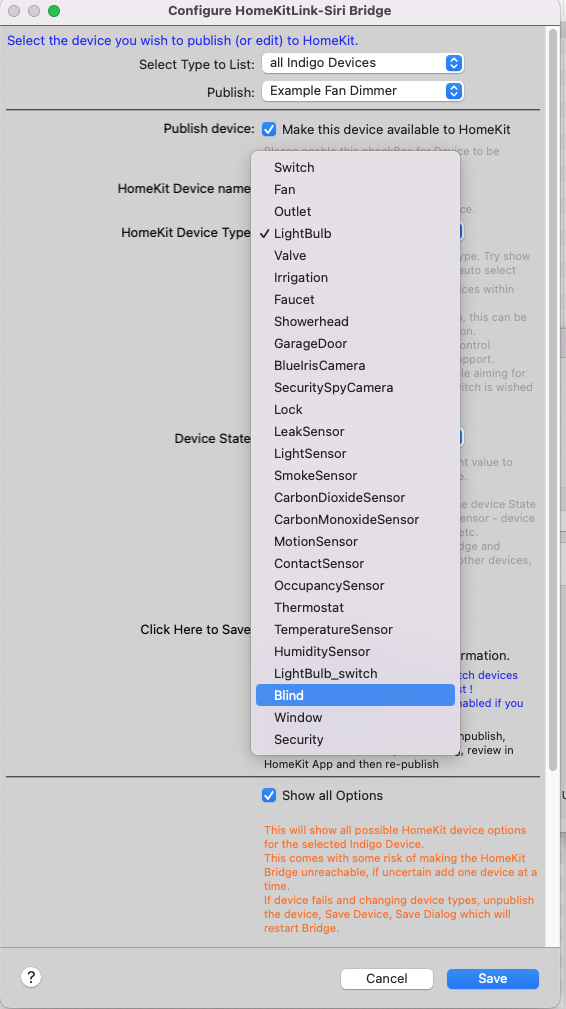
This is the HomeKitLink Bridge Edit Page.
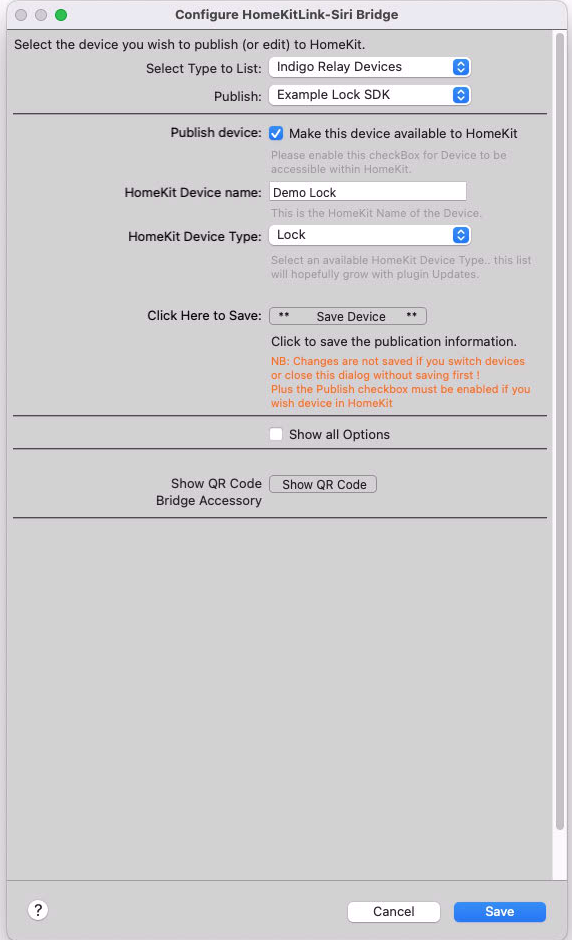
The first menu is a Indigo Device Selection menu - all Indigo Devices lists ALL indigo devices. Everything else just aims to shorten this list to devices you may be more interested in - eg. Sensors, or Lights etc. This only makes it easier to find devices. These are duplicated in the all list - just harder to find if you have hundreds of devices.
The Show All Options option selection enables you to select any HomeKit device for the currently selected indigo device. (as per the warnings)
The Show QR Code button will show the QR code, for adding this bridge to HomeKit for the current HomeKitLink Bridge device.
The bridge needs to be running for this to function, so add devices, Save - check no errors and return to Show QR code.
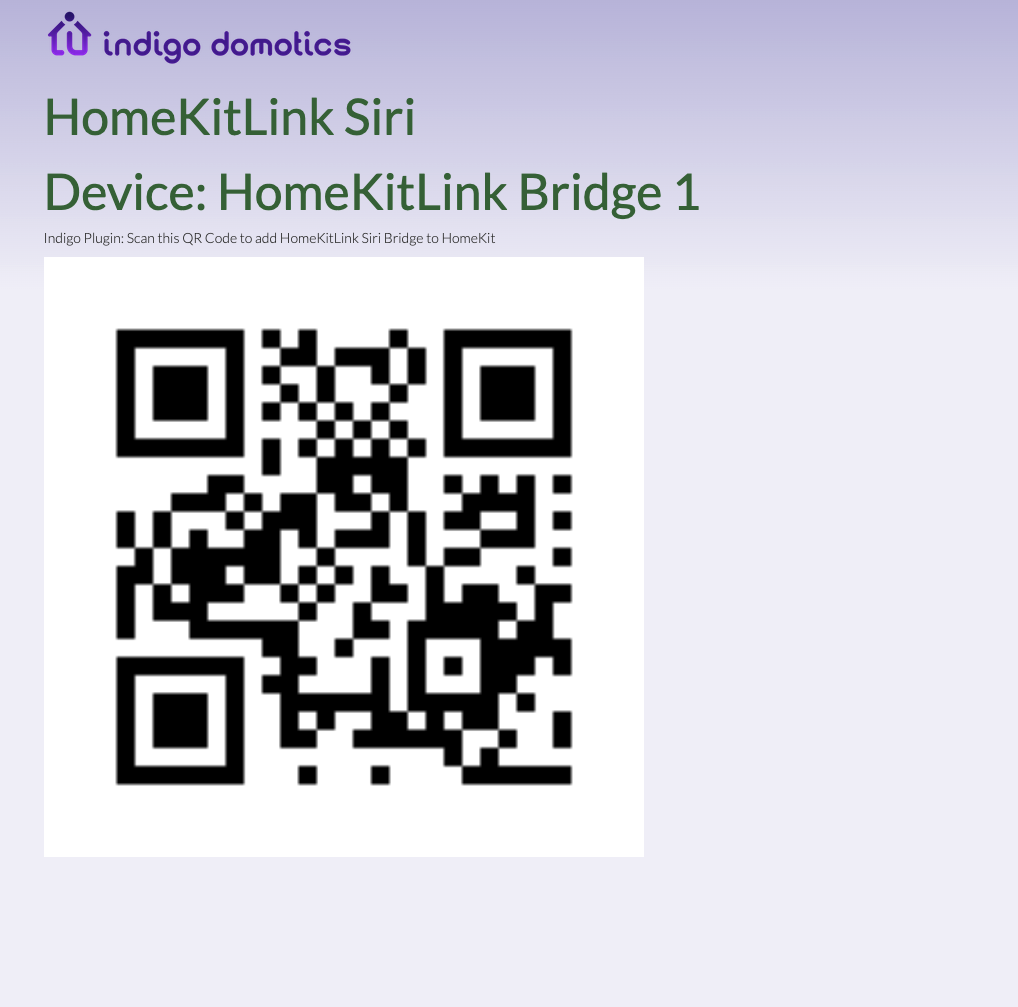
From within your HomeKit app: Add Accessory - scan QR Code - and use this code. THe Homekit App when then take your thorough the rest of the process.
It is important for device to be published to Homekit: To enable the Publish checkbox, and click SAVE once all details have been entered. Once this is done - the log will display info, and you can keep adding devices if happy are straightforward.
If you are adding a strange device, or pushing the envelope you should add one at a time and ensure works from within the HomeKit App. If the device fails in HomeKit, unpublish in HomeKitLink Bridge and click save.
Important: If you are changing HomeKit device - Light to MotionSensor that will be an issue. Remove it first, Save, Save config and alllow bridge to restart. Check in HomeKit app device is gone and then readd as new device type.
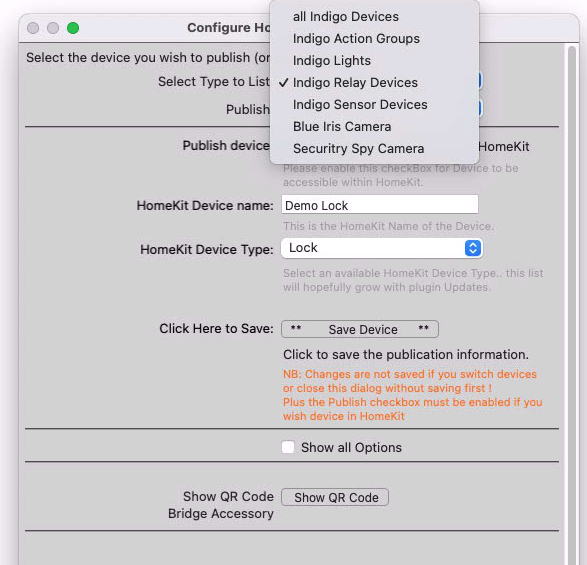
Below is an example of the device list menu - it shows devices published to this HomeKitLink Bridge, and greyed-out devices published to other HomeKitLink Bridges To Edit the devices you need to edit the appropriate HomeKitLink Bridge.
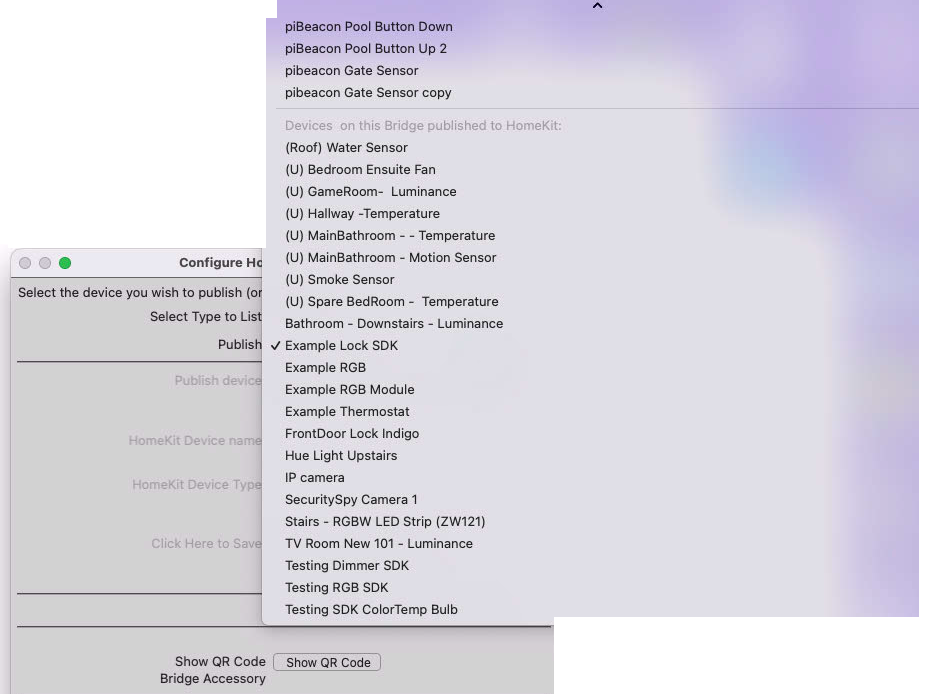
Below are the currently supported device types. These are automatically guessed by HKLS, but can be selected by ShowAll option. Most should be funcitioning close to 100%
The main supported cameras are BlueIris and Security Spy plugin cameras. BI is more smoothed out as far as its support goes. When you select a Camera you can also add a DoorBell. This DoorBell can be any Onoff indigio device. When this device is activated - HomeKit will show you the Camera stream with a notification that DoorBell was pressed. For BlueIris the Cameras also are registered in HomeKit as Motion Sensors - and you can trigger act on these depending on your settings within the HomeKit App. For Security Spy - we are hoping that a plugin update will also enable this function.
Other cameras - basically aren't supported, and you would be better off running a homebridge instance outside of Indigo.
Menu Items:
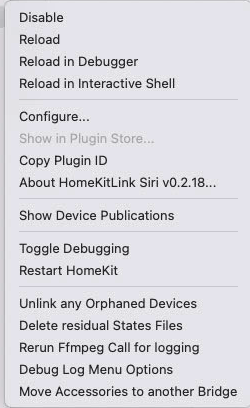
Show Device Publications
This shows in indigos log all current devices wished to be published to HomeKit.
Such as (updated since this photo)
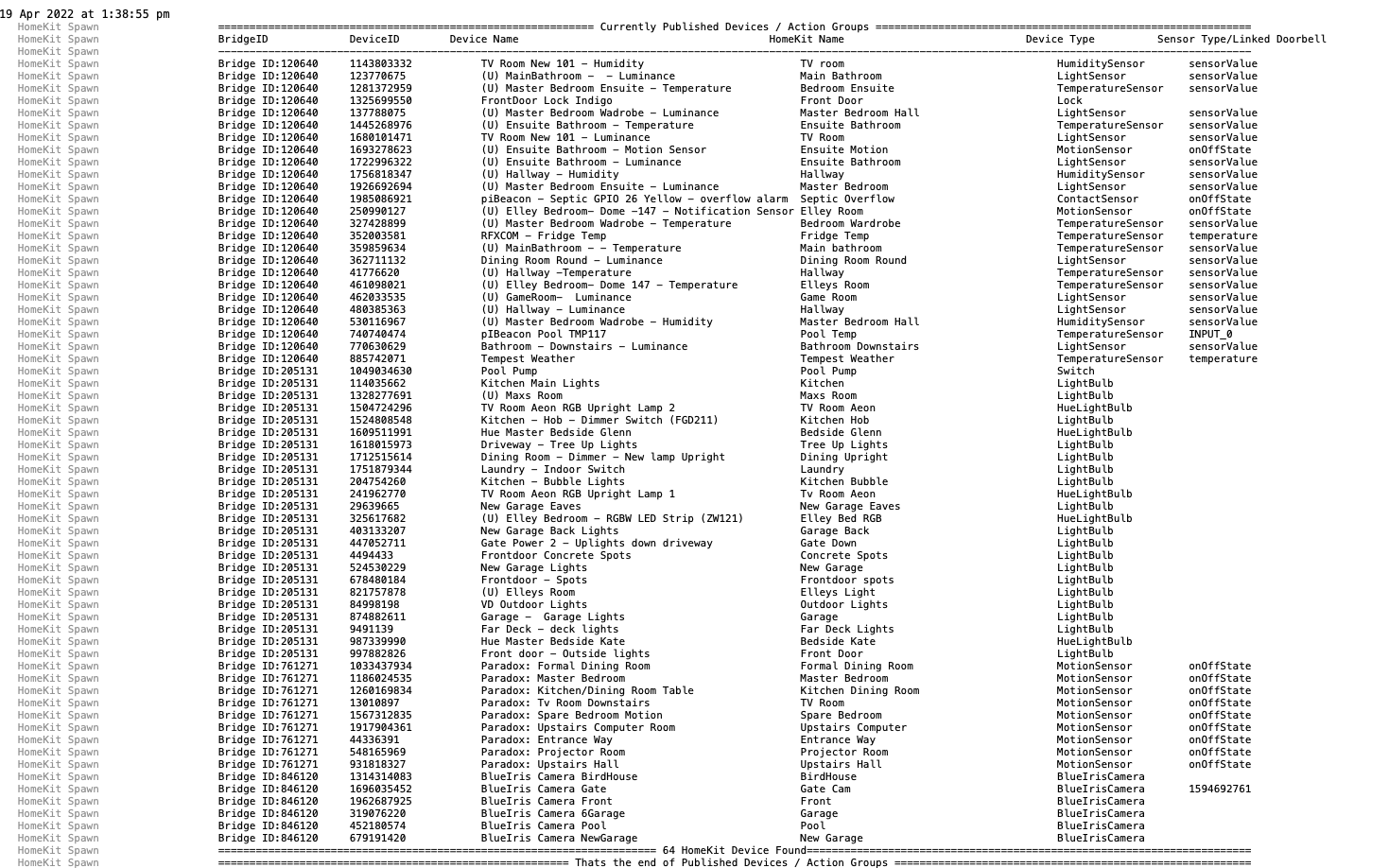
If HomeKitLink Bridge is disabled - will show as warning. If HomeKitLink Bridge does not exist at all (deleted) it will show red
Unlink any Orphaned Devices
This will remove linkage for all/any devices whose bridge no longer exists
Rerun ffmpeg Call for Logging
This will run the last camera (uses ffmpeg) video stream command - use this to check for simple errors in displaying the camera stream
Debug Log Menu Options
Will display seperate menu with a number of debugging options, which hopefully won't be needed for most users
Move Accessories to another Bridge
This will copy HomeKit Accessories (all these devices we are publishing) from one HomeKitLink Bridge to another. Use this if deleted a bridge and need to move old devices across to new.
Devices supported
Lights - dimmer/brightness/Color
Lightbulb: Should be the choice for all light devices. Unless you wish a simple on/off device (even if brightness etc available) - in which case select Lightbulb_switch Within the HomeKit can you can group Accessories together into one.
Fan (simple switch) and Fan V2
Plugin self decides. If wish a simple Fan regardless of device - then select Switch and change within HomeKit
Switch: Within Homekit this can be changed to Switch, Fan
This is simply On/off device. Action Groups default to this option. Any onOff device within indigo should be supported. Within HomeKit any switch can be displayed as a Fan, Switch or Outlet - simply select Icon and change.
Cameras:
Blue Iris - options come from the Blue Iris plugin, if you haven't installed this and you wish to use Blue Iris - you should. It enables Motion detection for each camera, live with HomeKit notifications, and Doorbell option exists for each camera. eg. press Doorbell and get Notification and live stream click access.
Security Spy - camera streams, Doorbell can also be selected. Motion detection is pending some plugin changes if possible
Locks
GarageDoor
The below sensors are supported by Plugin. The approach to Sensors is that this is user selectable. Technically you could make a Light Switch a Occupancy Sensor as everything is user selectable.
Occupancy Sensor
Valve
ShowerHead
Outlet
Thermostat
Largely supported. Main still be some fine tuning needed
Motion Sensor:
Temperature Sensor:
Humidity Sensor:
Contact Sensor
Above rules apply, either defaults to Sensorvalue or can select another state to be used..
Blinds
Windows
Both with option to reverse logic of closing. End On = closed, or On = open. Plus reversal of % closed. End 20% closed, or 20% open
Security Systems
Security System is a slightly different entity to the above as it has no device within Indigo that is vaguely similar. I have a added a reasonably extendable approach to security systems - so hopefully can add other devices as needed/reported.
Currently partially supporting VSS devices (basic security system device only), Paradox/Magellan/SP7000 alarm, and DSC Keypad. This is not complete as testing devices is difficult lacking the actual hardware or ability to trigger. Further Alarm systems should be able to be added.
When will this happen?
Good question.
The aim, and focus of this Plugin is to allow HomeKit to access Indigo Native devices - not allow your Samsung TV which may have a plugin in Indigo to then get into HomeKit. Into Indigo and then out to Homekit. If that is your aim I would suggest you run a homebridge instance somewhere - potentially on Indigo Mac and add whatever plugins are needed.
Currently
- all Indigo Relay Devices are supported
- all Indigo Dimmer Devices are supported as both Lights and Fans
- Speed Control devices supported as a Fan type
- all action Groups are support as Switchs/Fans/Outlets
- all Sensor devices; including plugins sensors (that are likely not anywhere except in Indigo) are supported Bug fixing these devices and adding features will be the priority.
There is a bug / this doesn't work
Please add a issue to Github - and based on the above principals that will guide priority
This isn't in the previous plugin HomeKit-Bridge plugin
Its quite different in its implementation and there is nothing underneath the surface doing the hardwork except the plugin itself. Requests that start with HomeKit-Bridge supported this, or did this etc.etc.... or the like will drop considerably in any prioritisation :)
FAQ
Issues:
Bridge can't be seen in the HomeKit OS App
OK. Well broadly it is either a plugin issue, or a HomeKit app issue.
You need to add the brige to a homekit app with the QR code as per the instructions.
Troubleshooting: Is this device on the same Wifi network? Check troubleshooters with this issue in the App in mind. Check your Indigo computer is accessible and isn’t behind a firewall Check whether can connect the accessory from other iOS device.
& Back to plugin. If you have used ShowAllOptions selection box, this opens up a wrong selection causing the bridge to fail - which annoyingly leads to minimal reporting. I Would remove all published devices from the bridge unselecting the publish button and pressing save for each. & and/or then delete bridge device. Create new bridge device, and add single Light only and try with this, or indeed with no published device. If there is no published device and the bridge is running, very unlikely to be plugin, more like connection issue within your network, this iPhone device.
If that is the case then: Can try below as encryption appears to end up in bad state at times and below resolves. On your iOS device, use the Forget Network feature in your WiFi settings. Rejoin your WiFi network. Attempt to add the homebridge platforms/accessories as you normally would.
See here for further troubleshooting https://github.com/Ghawken/HomeKitLink-Siri/issues
Other troubleshooting
Can Try mDNS options below:
https://support.lifx.com/en_us/free-network-improvement-tool-routethis-ByvgG_iIu https://apps.apple.com/us/app/discovery-dns-sd-browser/id1381004916?mt=12
Changelog
Version 0.6.40
Camera Handling Updates
Refactor ffmpeg and camera handling - BlueIris working well, hard to test SecuritySpy... Use tcp for rtp_transport avoids error and slight slowdown from ffmpeg Speed up streams and checking whether needed, or should already be closed.
Hopefully avoids OS17.2 AppleTV issue where it opens all Camera streams live (needing ffmpeg instance for every stream)
Add new Camera Settings:
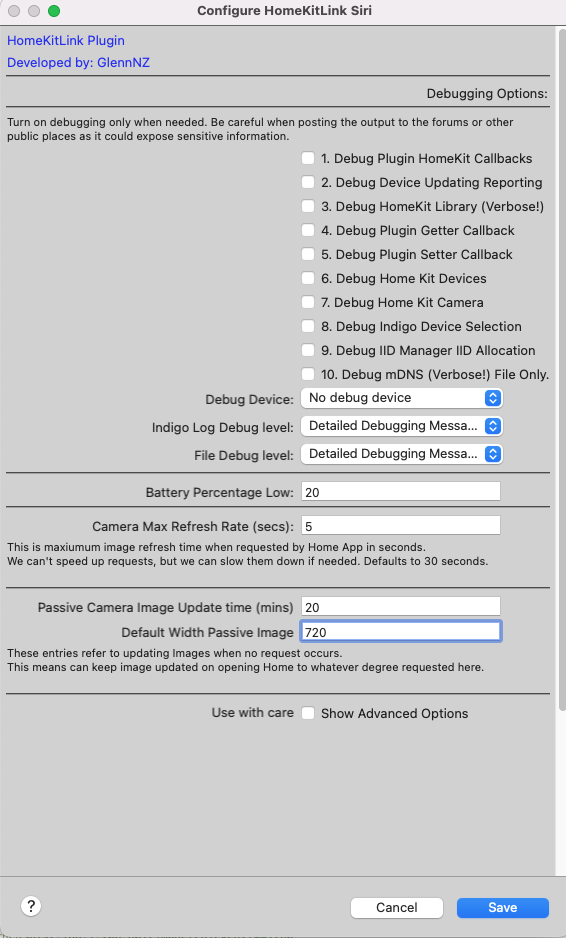
Camera Max Refresh Time:
This enables setting of Maximum refresh time per camera. Home App can request whatever it likes but if camera/Mac can't handle request gets a long que of never filled images. Defaults to 30 seconds, but can be as low as like. Lower numbers may impact CPU usage and BI/SS System CPU usage.
Passive Camara Update Image Time
This needs a shortened name! This refers to what timeframe HKLS will let pass before passively updated the stored images. Remembering that we need, and use a image buffer so this can be served to Home ASAP when requested. At plugin startup this is the default camera image. If the Home app is not opened for hours or days, the inital image seen before quickly updated will be very old. This setting sets a limit as to how often HKLS will update these stored images when Home app is NOT requesting. e.g 1 hour - so oldest image seen when reopening app after sometime will be an hour old.
Width setting, refers to the Width of the image requested.
Version 0.6.0
New 16.4 HomeKit Architecture
After some hours of troubleshooting mDNS connections it seems with new 16.4 architecture without a Home Hub (AppleTV or HomePod) The various homekit apps (Home app) close connections with this plugin, everything still works it would seem, but adds a slight delay With a HomeHub added - no such behaviour. Nothing to do with mDNS/Bonjour afterall!
Changes
Spins up HLKS own Zeroconf Async server for use by all Bridges to help minimise overhead. Adds Advanced mDNS Options Adds Reset Accessory option Bump python-zeroconf to version 0.56 Bump h11 to latest dev version Adds debug10 logging of very verbose mDNS settings (this goes to file ONLY) Attempt to fix Valve device (slowed down by above), Valve/Irrigation/Showerhead devices appear to have been fixed. (Interestingly there is some HomeKit app issue - as when appears to have not updated which happends infrequently, if open the device - will refresh and show correct state) Add HKLS support for new Beta version of plugin for AD2USB security systems - (Thanks ab39870)
(as you can guess given above, and potentially for issues, some testing is needed...)
Advanced Bonjour/mDNS options
Adds Advanced Bonjour/mDNS options for troubleshooting, including Debug10 - a very verbose file only mDNS/Bonjour logging option.
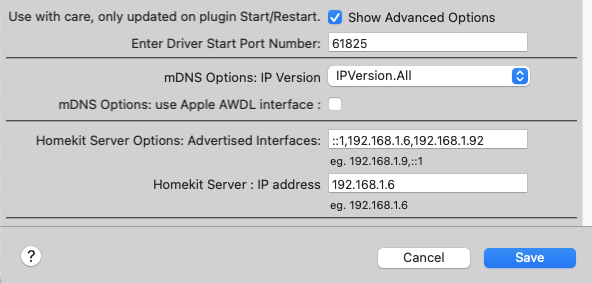
USE THESE WITH CAUTION
mDNS Options: IP Version. Ideally should be IPversion.All or IPVersion.V4Only. mDNS Options Interfaces, a comma seperated list, or single IP address that HKLS should listen on. (NB it seems if IPVersion.All is selected and V4 IP address given - a list will fail as Bonjour tries V6) (So if giving a List of IP addresses, select IPVersion.V4Only)
mDNS use Apple AWDL: Strangely still seems to work with this enabled. Default is disabled.
Homekit Server Options Interface: Single IP address which is what will be forced used for HKLS. This differs from mDNS as above. It must be the device you are running the plugin on.
Reset Accessory
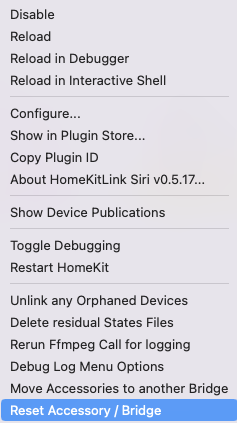
This allows a bridge to be selected that will have all its security and connection to HomeKit deleted. Gone. Ideally this should be used if you added bridge to homekit and then deleted it, or tried to add and failed/cancelled.
Before use delete bridge from Home App. Select bridge and run. For good measure restart plugin. And then re-add accessory, hopefully removing the message that this accessory needs to be reset.
| v0.8.45 | Requires Indigo v2024.2.0+ | Released Nov. 15, 2026 | HomeKitLink Siri 0.8.45 — HKSV, UniFi Protect, new devices and types, better live view, steady bridg |
| Released on: | Nov. 15, 2026 |
| Requires: | Indigo v2024.2.0+ |
| Downloaded: | 84 times |
| Download this release | |

HomeKitLink Siri 0.8.45
A preview with a lot that's new since 0.8.05: HomeKit Secure Video, UniFi Protect cameras with two-way audio, new HomeKitLink devices (HomeKitLink Sensor, HomeKit Buttons), new HomeKit types (Heater-Cooler, Air Quality, Vacuum / Lawn Mower), a much easier bridge settings dialog, improved live view (Apple TV and remote viewing), and an important fix: bridges now keep their port, which ends a cause of whole bridges showing No Response.
Everything new is opt-in, apart from improved live view (on by default, one tick box to turn it off): devices you don't change behave as before. Several features started in Durosity's PR #42. Thank you! Devices set up with Durosity's development build keep working.
Full change log: Wiki → Changelog · New devices: Wiki → HomeKitLink Devices
⚠️ Important fix: bridges keep their port (0.8.40)
If you run more than one bridge, please update.
Each HomeKitLink bridge listens on its own network port (51840, 51841, …). Until now, ports were handed out in the order bridges started, and bridges start in name order. So adding a bridge, deleting one, or renaming one so the order changed, moved every later bridge to the next port at the next restart.
Home apps and, above all, home hubs (Apple TV / HomePod) remember each bridge's port. After a move they kept knocking on the old port, where they now reached a different bridge. That bridge's keys didn't match, so they gave up quietly, and every accessory on the bridge they wanted showed No Response, even though everything still worked from Indigo. The bridge they reached saw nothing wrong, so nothing was logged.
It looked like an unexplained, whole-bridge No Response that sometimes came back for a moment (when an iPhone connected directly) and then dropped again (when Home went back to the hub). In testing it took out 42 accessories on two bridges after one new bridge was added, and restarting the home hub was what cleared it.
What's changed
- Each bridge now keeps the same port, every start, whatever order bridges start in. Ports are saved in
bridge_ports.jsonin the plugin's preferences folder. - The first start after updating saves the ports your bridges have now, so nothing moves on update.
- A new bridge gets a port no other bridge has ever used, so adding bridges no longer disturbs the others.
- If a bridge's usual port is ever taken by something else, it moves to a free port and the log warns that Home may show it as No Response for a while.
- The saved ports file is written safely and never overwritten if it can't be read (0.8.43). Don't delete it: Troubleshoot 4 shows the exact contents to put back if it's ever damaged.
If you have No Response now
Update, then restart your home hub(s) (Apple TV / HomePod) and force-quit the Home app on your phone. Then check the log for the warning below; Troubleshoot 4 shows the whole picture.
📷 Improved live view (0.8.44)
A new setting, Plugin Config → Live view: Improved live view, on by default. It brings HomeKitLink's live streaming in line with Home Assistant, homebridge-unifi-protect, Scrypted and homebridge-camera-ffmpeg, mainly for Apple TV and remote viewing (which your home hub relays).
What it changes: - Matching video ports. HomeKit is told which port the video comes from, but until now ffmpeg sent it from a random one, so the viewer's reports never reached us. Every other project keeps these the same; now HomeKitLink does too. - 1200-byte packets, which fit relayed and IPv6 paths. - Re-encoded video is made for the request: scaled down to the size HomeKit asked for (never up, keeping the shape; portrait stays portrait), one slice per frame, a keyframe every 4 s instead of every 0.5 s, and HomeKit's level and frame rate. Scaling used to break HomeKit playback; one slice per frame fixes that. - Remote views start at 720p. Away from home, HomeKit starts small (640×360 at 132 kbps) and asks for 1280×720 a few seconds later, a change a running stream can't follow, so remote views stayed low quality for good. They now start at 1280×720. Blue Iris and UniFi still use their remote stream (Blue Iris sizes it to 720p for us).
What it doesn't change: cameras whose stream suits HomeKit are still copied (passthrough) with the camera's full picture, e.g. Blue Iris sending its full stream on your home Wi-Fi. Only the ports and packet size apply to them.
Tested on iPhone (Wi-Fi and 5G) and an Apple TV camera grid: everything plays, and the Apple TV was "very hard to fault" with it on. Untick it for the previous behaviour, exactly. Each stream logs what was applied. → Wiki → Camera Setup → Improved Live View
🔎 New: wrong-bridge warning (0.8.41)
Every request a Home device sends names the bridge it's meant for. HomeKitLink now checks that name on every connection, so a device using an old port is spotted straight away and logged as a warning:
Home device 192.168.1.142 is looking for HomeKitLink Bridge 757297 but reached Bridge 104164 on port 51846: it is using an old port for Bridge 757297. Bridge 757297's accessories will show as No Response from that device (if it's your home hub, in the Home app everywhere). Restart that device (e.g. the Apple TV or HomePod) so it looks the bridges up again.
- It tells you which device (by IP: check your router to see if it's the hub), which bridge it wanted, which it reached, and what to do.
- It repeats at most every 10 minutes per device and bridge while it continues, so it can't flood the log.
- It's a quick check on each connection, so the bridges don't slow down, and it can't stop a bridge.
🔌 New: Troubleshoot 4 → Bridge Ports (0.8.41–0.8.43)
Plugin menu → Troubleshoot 4: HomeKit Pairing & Security Keys now has a 🔌 Bridge Ports section, so you can check this in one place:
- Every running bridge, its port, and whether it's on its saved port (
saved ✅). - Checks on the saved ports file (
bridge_ports.json):- it's there and readable;
- no two bridges are saved with the same port;
- it lists every running bridge.
- Ports saved for bridges you've deleted are listed (harmless: those ports just aren't reused).
- Every Home device that reached the wrong bridge since the plugin started: device, bridge it wanted, bridge it reached, how often, first and last time.
- The problem is also listed under the bridge that's showing No Response, with the fix. It shows as an error while it's still happening, and a warning once it has stopped.
- A new guide entry: "'No Response' on one bridge, everything looks fine".
All clear looks like this:
💾 bridge_ports.json: 9 bridges saved
   HomeKitLink Bridge AC        ID 178701   port 51840   saved ✅
   HomeKitLink Bridge Blinds    ID 752013   port 51841   saved ✅
   …
✅ Every running bridge is on its saved port, and the saved ports are all different.
✅ No Home device has reached the wrong bridge since plugin start.
New HomeKitLink devices
Besides bridges, HomeKitLink now has three device types of its own. Create them like any Indigo device: New Device → Type: HomeKitLink Siri → Model:
| Model | What it's for |
|---|---|
| HomeKitLink Sensor | Publish one state of another device as a HomeKit sensor of its own |
| HomeKit Buttons | Let Indigo start things in the Home app |
| HomeKit Secure Video Recorder | Add HomeKit Secure Video recording to one camera |
None of them change the Indigo devices they work with. Sensors and Buttons can be published from their own settings (Publish to bridge and HomeKit name) or from a bridge's settings (Select Type to List → HomeKitLink Buttons and Sensors).
HomeKitLink Sensor: one device, several HomeKit sensors

HomeKitLink publishes each Indigo device once, as one HomeKit type. That's fine for most devices, but many hold several readings: - a weather gateway (Ecowitt, Tempest, Netatmo): outdoor and indoor temperature, humidity, light, rain, PM2.5… - a thermostat or AC zone: its own room temperature - a multi-sensor: temperature, humidity and light in one device - any plugin device with a useful state that isn't its main value
Until now the only way to get more than one of these into Home was to make extra copies of the device with another plugin (Masquerade, Virtual Devices). A HomeKitLink Sensor does that in one step: it mirrors one state of another device as an Indigo sensor of its own, which you publish like any device. Make one per reading and each becomes its own tile in the Home app, with its own name and room, on any bridge.
- Sensor types: Temperature (°C or °F), Humidity, Light (lux), Contact, Motion, Occupancy, Leak, Smoke, Carbon Monoxide, Carbon Dioxide.
- On/off types are "detected" when the state is true/on, false/off, or equals a value you type, e.g.
rain,open,wet. - It follows its source on every change, and it's a real Indigo sensor, so you can use it in Indigo triggers and Control Pages too.
- Nothing is stored on the device it mirrors. If the source is deleted, or the state disappears or isn't a number, the sensor shows an error and the log says why.
Example: an Ecowitt gateway. Publish the gateway itself once (for example as an Air Quality Sensor using its PM2.5), then add HomeKitLink Sensors for outdoorTemp → "Garden Temperature", outdoorHumidity → "Garden Humidity", solarRadiationLux → "Garden Light" and rainStatePiezo → "Raining" (Leak). Five tiles in Home from one device.
HomeKit Buttons: Indigo → Home

A switch lets the Home app run something in Indigo. HomeKit Buttons are the other direction: they let Indigo start things in the Home app. The device does nothing in Indigo itself; it appears in Home as a button accessory (like a wireless remote), and the Home app decides what each press does.
- 1–10 buttons, each with a single, double and long press, so up to 30 different Home actions.
- Press them from anywhere in Indigo with the action Press a HomeKit Button: triggers, schedules, action groups, Control Pages, scripts.
- What it's good for: things only the Home app controls. Matter or Apple-only devices, HomePod music, Home scenes that mix Indigo and non-Indigo devices.
- Physical remotes and wall switches (WallMote, Fibaro Button, keypads) can be passed on to Home too: add Press a HomeKit Button to the remote's Indigo triggers.
- The log shows each press, and the device's states show the last button, press and time.
Set it up: create it (buttons, names, bridge, HomeKit name), open it in the Home app and choose what each press does, then press it from Indigo.
HomeKit Secure Video Recorder

Adds HomeKit Secure Video to one published camera (Blue Iris, SecuritySpy or UniFi Protect). See HomeKit Secure Video below for what it is, and whether it's for you.
HomeKit Secure Video (HKSV)
HomeKit hubs can now record your cameras' motion and doorbell events to iCloud, with the usual HKSV features: the Home app's timeline and clips, activity zones and notifications, and recording options per camera (Stream / Detect Activity / Record, depending on whether anyone is home).
Is it for you?
Be clear about what it is. HKSV is not a replacement for an NVR. Blue Iris, SecuritySpy and UniFi Protect record continuously, keep weeks of footage on your own storage, search it, and do their own detection. HKSV records short clips of events only, kept for 10 days, in iCloud, viewable only in the Home app. For most users with an NVR, the NVR is the better recorder, and HKSV adds little.
Where it can be useful: - A few key cameras (front door, doorbell, gate) whose events you want in the Home app, alongside the live view, with Apple's notifications and face recognition from your Photos library. - Clips you can see on any Apple device without opening the NVR's own app, or giving family members access to it. - An off-site copy of important events in iCloud, if the NVR or its disks are lost or stolen. - Cameras not recorded by your NVR at all.
What it needs: - An iCloud+ plan on the home owner's Apple account (50 GB plan: 1 camera; 200 GB: 5; 2 TB or more: unlimited). Clips don't count against your iCloud storage. - A home hub (Apple TV or HomePod) to do the recording. - The camera's motion sensor published in HomeKitLink, since HomeKit records on motion (and doorbell) events.
What it costs: for HomeKit to have the seconds before an event, each recording camera keeps one ffmpeg running around the clock while the Home app allows recording. When one of the camera's streams suits HomeKit (H.264, up to 1080p, a keyframe about every 4 s) it's copied, at about 1–2% CPU per camera. Otherwise it's re-encoded, with VideoToolbox, at roughly 13% CPU per 1080p camera on an Intel Mac mini (libx264 is far more). Plus one extra stream from your NVR per camera.
That's why recording is a separate Recorder device per camera: a deliberate choice for each camera, never a tick box that ends up on twenty of them. Its states show what it's doing and what it costs: status, which stream and whether it's copied, ffmpeg CPU and memory, recordings today, last recording.
Adding it: create a HomeKit Secure Video Recorder, choose the camera. A camera already in the Home app usually needs the Home app force-closed and reopened to show Recording Options; if not, remove the camera from Home and add it back. Details, measured costs and the risks with many cameras: Wiki → Camera Setup → HomeKit Secure Video.
📷 Blue Iris: live view starts faster (0.8.38)
Blue Iris live views now start about 1.7 seconds sooner.
The options that tell ffmpeg to start reading the camera stream quickly (-probesize / -analyzeduration) were placed where ffmpeg ignored them, so every live view waited about two seconds while ffmpeg studied the stream first. They're now in the right place.
| Measured, request to first video | Before | Now |
|---|---|---|
| Remote / small views (widgets, notifications, away from home) | 2.1 s | 0.4 s |
| Local full view | 1.8 s | 1.2 s |
Nothing to change: it applies to every Blue Iris camera, including the extra options you've set per camera. Small views, which are re-encoded, gain the most; checked on production cameras at 0.33–0.39 s.
🧾 Quieter camera logging (0.8.39)
Home widgets and Home Views refresh a camera's picture all day by opening a live stream for a second or two, over and over. Each one used to log a full set of start / stop lines, so a single widget could fill the log.
- Repeated short views are logged once. When the same device asks for the same camera at the same size again within 10 minutes, and its last view lasted under 5 seconds, that stream's lines go to debug level, with one line saying so.
- Real viewing is always logged: any view of 5 seconds or more, and the first view from each device.
- Normal logging resumes once the device has been quiet for 10 minutes.
- With Debug HomeKit Camera on, each snapshot is one debug line instead of eight.
New HomeKit types
- Heater-Cooler (air conditioners): any Indigo thermostat as the Home app's AC tile, with a power button, Heat / Cool / Auto, and heat and cool targets. Offers only what the thermostat supports.
- Zones of ducted systems (e.g. Actron Que, where they're set up automatically): a zone's power button opens or closes only that zone; it shows the main unit's mode and never changes the main unit. Targets stay within the zone's current limits.
- Air Quality Sensor: PM2.5, PM10, VOC, NO2, ozone, CO2 or an AQI from a device's states, with the Home app's overall rating (Excellent → Poor). Devices with states like
pm25are offered it automatically, e.g. an Ecowitt gateway's PM2.5 sensor. - Vacuum / Lawn Mower: shown as a switch (on = start, off = go home), as HomeKit has no vacuum tile outside Matter. Use the device's on/off, or choose Start and Stop action groups and the state that shows it's running.
UniFi Protect cameras (0.8.12+)
- New camera type UniFi Protect Camera (Durosity's UniFi plugin, or kw123's uniFiAP).
- Live video, snapshots, audio, motion and doorbell; remote viewing re-encoded to the size HomeKit asks for.
- Two-way audio: talk from the Home app through UniFi doorbells and cameras with a speaker.
- Package camera (G4 Doorbell Pro / G6 Entry second lens), G6 Entry detected as a doorbell, portrait doorbells.
Bridge settings: easier to use
- Search: type part of a name and press Find to list only matching devices; Clear shows all again.
- Sorted properly: ignoring capitals, numbers in order (
Zone 2beforeZone 10); other bridges shown by name. - New list types: Thermostats, Fans, Sprinklers, Plugin Devices (grouped by plugin), Cameras (all), HomeKitLink Buttons and Sensors.
- The dialog opens clean: a device's options appear only once a device is chosen.
- Fewer settings stored on your devices: a published device keeps only its own type's settings, and unpublishing removes them all. Deleting a bridge leaves its devices' settings in place, so they can be moved to another bridge.
Fixes
- Bridges keep their port: see Important fix at the top.
- Cameras on more than one bridge are all stream-checked. The startup check ran once, after the first bridge started, so cameras on bridges that started later were never checked, and a remote view could copy their full stream, which never played. A camera not checked yet is now re-encoded rather than copied.
- Blue Iris remote viewing check: when Blue Iris doesn't answer, the log says so instead of suggesting a setting change.
- Linked doorbells: a doorbell also published itself, or linked to several cameras, now updates everything (before, only one of them).
- Sensors published with their own state are no longer overwritten by the device's on/off state.
- Disabled HKSV Recorders no longer check streams or log repeatedly.
- Deleting a published device logs a plain warning rather than an error.
- Plus everything from 0.8.08–0.8.18: pairing and security hardening, fewer Home app reloads, remote viewing and audio fixes, snapshots, and more (Changelog).
Testing wanted
Please report on the forum, especially: - No Response after updating or adding a bridge: the wrong-bridge warning from the log, and Troubleshoot 4's 🔌 Bridge Ports section. - Live view on Apple TV and remote viewing, with Improved live view on and off: the camera, the viewer and the log line. - HKSV on SecuritySpy or UniFi Protect cameras: the Recorder device's states and the stream check lines from the log. - UniFi two-way audio, package cameras and G6 Entry. - Heater-Cooler with AC plugins other than Actron. - HomeKitLink Sensor with your weather or multi-sensor plugins.
| v0.8.08 | Requires Indigo v2024.2.0+ | Released Nov. 10, 2026 | Troubleshoot 4 security Menu item, Bug fixes, Remove unused code |
| Released on: | Nov. 10, 2026 |
| Requires: | Indigo v2024.2.0+ |
| Downloaded: | 100 times |
| Download this release | |
HomeKitLink Siri 0.8.08
See the full Changelog in the wiki.
0.8.08 — Latest
- New menu item: Troubleshoot 4 — HomeKit Pairing & Security Keys. Checks each bridge's pairing and security keys, Home users and connected Home hubs, and explains any problem with a fix
- New Show QR Code page: QR code, setup code, pairing status and steps
- Clearer log message when a Home app device can't connect to a bridge
- Bug fixes: plugin could fail to load (stray
scipyimport); battery levels now update in HomeKit; thermostat setpoints; security system startup state and Paradox arm/disarm; camera stream stability and clean-up; Move Accessories; several possible crashes; Toggle Debug remembers its level - Removed the hidden legacy "unQuarantine files" option
- Typo and wording fixes
| v0.8.05 | Requires Indigo v2024.2.0+ | Released April 7, 2026 | mDNS refactor. Camera Stream update. Audio sync fix. Future Python 3.13 compatible. Backwards C |
| Released on: | April 7, 2026 |
| Requires: | Indigo v2024.2.0+ |
| Downloaded: | 453 times |
| Download this release | |
HomeKitLink Siri 0.8.05
Major: Camera Audio — Opus SRTP Proxy (0.7.10+)
- New homekit_audio_proxy library — a subprocess-based RTP/SRTP audio proxy that solves the FFmpeg/HomeKit clock-rate mismatch for Opus audio. FFmpeg uses 48 kHz timestamps (per RFC 7587) but HomeKit expects the negotiated rate (e.g. 16 kHz). The proxy receives plain RTP from FFmpeg, converts timestamps, encrypts with SRTP (AES_CM_128_HMAC_SHA1_80), and forwards to the HomeKit client.
- Blue Iris cameras default to libopus for audio (annoyingly (!) does require a camera re-add for existing setups, but delivers much better audio quality).
- SecuritySpy cameras gain the same libopus audio proxy support.
Major: Camera Stream Intelligence
- New resolve_video_strategy() function — uses ffprobe data to intelligently decide whether to copy or transcode each camera's video stream, builds appropriate filter chains, and provides actionable warnings (e.g. "GOP borderline", codec incompatibility).
- New Menu Item: "Check or Update Camera Streams for Compatibility" — runs ffprobe against all configured cameras and logs compatibility findings. Auto-runs at startup in hidden debug-only mode. Rerun this item if change stream settings to update how stream is processed.
- Automatic transcoding — when ffprobe detects incompatible streams (non-H.264, wrong pixel format, problematic GOP), the plugin now auto-transcodes for HomeKit compatibility instead of silent failure.
- Added homekitlink_ffmpeg library update to include ffprobe binaries.
Major: mDNS/Zeroconf Refactor (0.7.40–0.7.50)
- Default IP version changed to V4Only (was All) — the HAP server is fundamentally IPv4-only (AF_INET throughout), so IPv6 mDNS advertisements were serving no purpose. Warns users if they override to All/V6Only.
- New zeroconf_interfaces parameter added to AccessoryDriver — separates the concept of "which interfaces zeroconf listens on" from interface_choice (ip_version). These are now properly treated as mutually exclusive per zeroconf's actual API behavior.
- Fixed advertised_address conflation bug — previously advertised_address was incorrectly passed as interfaces to AsyncZeroconf, conflating the mDNS A-record address with the network interface list. These are now distinct.
- mDNSinterfaces field unhidden in Plugin Config — previously hidden with hidden="true", now properly visible under Advanced settings so users can control which interface(s) zeroconf advertises on.
- Auto-derive interfaces from server IP — when HAPServeripaddress is set but mDNSinterfaces is empty, the interface list is auto-derived as [HAPServeripaddress].
Major: Diagnostic & Troubleshooting Tools

- New Menu Item: "Support mDNS Troubleshooting" (Menu_mDNS_troubleshoot) — comprehensive mDNS diagnostic that checks interfaces, firewall status, zeroconf state, Bonjour/mDNSResponder status, and more. All output to plugin log for easy forum posting.
- New Menu Item: "Network Trouble Shooting" (Menu_network_troubleshoot, current branch) — tests Apple Local Network Access (macOS Sequoia 15.x+ requirement), multicast connectivity, UDP/TCP reachability, gateway discovery, DNS resolution, firewall settings, and bridge port accessibility.
- Definitive LNA test: Uses IP_MULTICAST_IF bound to a specific non-loopback IP + sendto() to mDNS group — this catches the exact failure mode when LNA is blocked (previous tests could false-positive via loopback).
- Enhanced logging_issues() — "Support Information for Forum Posting" now includes mDNS/network configuration details (IP version, interfaces, listen address, IPv6 support).
Python 3.13 Compatibility
- Removed async_timeout dependency — replaced all import async_timeout / async_timeout.timeout() with Python 3.11+ built-in from asyncio import timeout as async_timeout across pyhap (camera.py, hap_handler.py, util.py).
- Updated all library versions for Python 3.13 compatibility: cryptography 41→46, orjson 3.8→3.11, h11 0.14→0.16, zeroconf 0.131→0.148, chacha20poly1305-reuseable 0.12→0.13.
- Removed slugify and aiofiles dependencies (no longer needed).
- Added cffi, pycparser, ifaddr as explicit dependencies.
- Fixed pip install success detection — preflight.py now uses glob matching (*pip-install-log-success.txt) instead of exact filename, accommodating Python version changes that prefix the filename.
Bug Fixes
- Removed dead cryptography import check — the init no longer raises ImportError for missing cryptography (this is handled by preflight now).
- Fixed image snapshot timeout issue (0.7.02).
- Fixed interfaces not being selectable in plugin config (0.7.40).
- Fixed multi-NIC discovery — binding to all IPv4 interfaces should fix issues when 2+ network connections are active.
| v0.7.02 | Requires Indigo v2024.2.0+ | Released March 7, 2026 | Support Indigo 2025.2 and python 3.13. Fix for Camera Snapshots |
| Released on: | March 7, 2026 |
| Requires: | Indigo v2024.2.0+ |
| Downloaded: | 171 times |
| Download this release | |
Fix for Camera Snapshots Support for Python 3.13 and library updates/changes/consolidation for Indigo 2025.2
| v0.6.75 | Requires Indigo v2023.2.0+ | Released Feb. 23, 2025 | Adds Menu for Support info, Supports Spy Connect (new SecuritySpy Plugin), Few bug fixes |
| Released on: | Feb. 23, 2025 |
| Requires: | Indigo v2023.2.0+ |
| Downloaded: | 158 times |
| Download this release | |
0.6.75
Adds:

Logs all current information, including libraries, and also attempts to install Xcode tools. Please post (in code comments) in forum if issues. Alternatively - simply running may help
New Addition: Support for FlyingDiver SecuritySpy Plugin (Spy Connect) enabling support for these camera device types. - Add support for Motion Events if requested (was not an option via old plugin) - Add support for Doorbell and trigger as needed on doorbell press - (by Default Home shows pop up video notification on DoorBell press)
Few bug fixes if deleting bridges/devices/without restarting plugin.
| Released on: | Oct. 1, 2024 |
| Requires: | Indigo v2023.2.0+ |
| Downloaded: | 177 times |
| Download this release | |
0.6.72
API 3.4 Indigo 2023.2+ Only
0.6.72
Embeds a startup check, with change to early running checks for Xcode-tools installed or not if library install has failed. (if libraries installed correctly no change to current)
Should message, check xcode-tools status, and install and shutdown if missing (only if library installs have failed)
Bug fix for logging Menu if have recently deleted a device published to HomeKit within Indigo.
0.6.66 Update for Garage Door Stopped state startup error
Add Menu Item: Support Information for Forum Posting - Logs information regarding plugin, directory, system and the like - Logs Library installs already attempted/completed if exists. - Attempts to download and/or compile library again (in temp directory) and logs output - Checks for Xcode tools install, will attempt to install if possible (likely will need manual install) - Logs Bridge/Devices running etc. - Logs Advanced Network settings
Aim to post output to forums or to check output yourself if issues.
Finally: Defaults to IPVersion.ALL (rather than IPVersion.V4Only). Somewhere it seems OS18 prefers this for AppleTV OS18 Hub devices.. (or that is what my testing) If issues occur - change back to IPVersion.V4Only - which was previous default
0.6.65 Remove Sensor devices from OnOff Checks (better fix)
0.6.64 (Pre-release) Fix for HeatCool/Auto mode Thermostat's no longer sending TargetTemperature with Heat/Cool endpoints Add Cool and Heat threshold in scenario of no target temp given
| Released on: | Jan. 26, 2024 |
| Requires: | Indigo v2023.2.0+ |
| Downloaded: | 178 times |
| Download this release | |
0.6.61
API 3.4 Indigo 2023.2+ Only
Downgrade orsjon library to 3.8.10 which appears to have binaries for high sierra and above without needing compiling
Remove need to xattr command to be run, ever. Use indigo to download and install most dependencies. Move to Orson (x20 faster) Camera Stream updates as per pre-release details 0.6.50
0.6.60
Completion of Library dependencies, create & use pypi library of homekitlink_ffmpeg pypi library https://pypi.org/project/homekitlink-ffmpeg/
Fix requirements.txt to specific versions
0.6.55
Completion of Indigo API 3.4 taking over all binaries and libary install. No more xattr commands (hopefully!)
0.6.52
Library move. Update pyhap to use orjson (x20 faster) now can download library without needing another terminal command Add a few more fancy snapshots to camera, including default if no snapshot images
0.6.50
Few bug fixes for ffmpeg changes, 2 - bytes string issue not seen until deeper logging, and stdin disabled Adds an ffmpeg watcher to ensure process has ended.
Occasionally appleTV appears to end without requesting end of stream - hard to fix as far as plugin knows still wish stream open/running. Considering options of checking peridocially for abandoned processes...
Follow
Pre-release changes 0.6.50
Remove audio from stream if not requested, may have lead to stream failure when trying to publish Show ffpmeg logging menu item details Fixes for bugs introduced with 0.,6.47 with stream closing/killing/logging ffmpeg output Adds a async_ffmpeg_watcher running every 5 seconds checking stream up if not closes appropriate processes, including itself. Fix for ffmpeg logging bug introduced as check for audio lacking. (bytes vs strings difference) Re-add stdin for ffmpeg to allow controls
Fine tuning Blue Iris Web Server settings
Home App requests a bitrate of 802kps when AppleTV or when ipad streams requested. 299kps when on mobile networks.
Few pointers:
HomekitLink uses Stream2 from BlueIris Web Settings: (This is from Web Server, Advanced, Encoder Profiles, Streaming 2 : Configure)
Below Seems ideal (but if improvements please post)
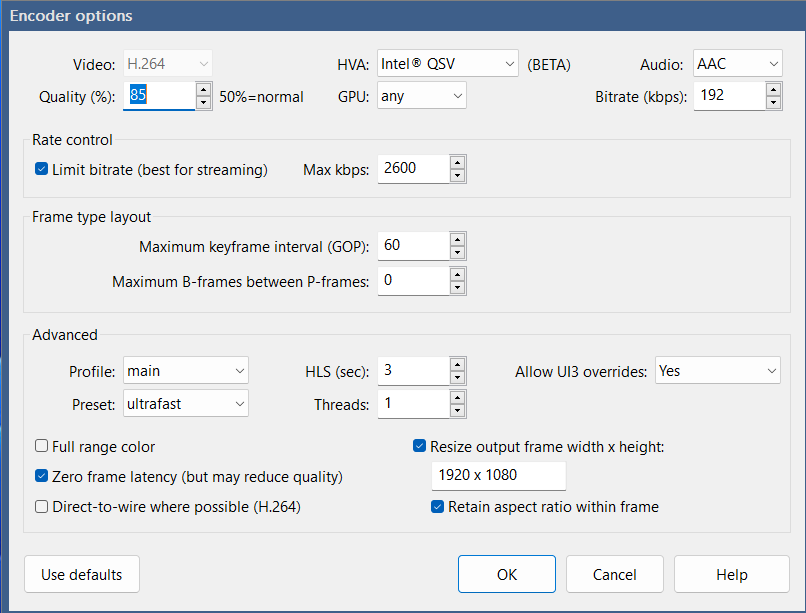
Rate Control Limit bitrate (best for streaming)
When unselected/Disabled - appears to give best image when local streaming (almost perfect). But Home app fails to start the stream when low bit rate request when on mobile networks (annoyingly) Set to 802 kps gives a reasonable image - however it appears that any conversion of stream makes it compatible with Home app - here I have set it to 2600kps. Higher may improve further, and works at both 802 and 299 kps Home requests.
| Released on: | Jan. 17, 2024 |
| Requires: | Indigo v2023.2.0+ |
| Downloaded: | 165 times |
| Download this release | |
0.6.60
API 3.4 Indigo 2023.2+ Only
Remove need to xattr command to be run, ever. Use indigo to download and install most dependencies. Move to Orson (x20 faster) Camera Stream updates as per pre-release details 0.6.50
0.6.60
Completion of Library dependencies, create & use pypi library of homekitlink_ffmpeg pypi library https://pypi.org/project/homekitlink-ffmpeg/
Fix requirements.txt to specific versions
0.6.55
Completion of Indigo API 3.4 taking over all binaries and libary install. No more xattr commands (hopefully!)
0.6.52
Library move. Update pyhap to use orjson (x20 faster) now can download library without needing another terminal command Add a few more fancy snapshots to camera, including default if no snapshot images
0.6.50
Few bug fixes for ffmpeg changes, 2 - bytes string issue not seen until deeper logging, and stdin disabled Adds an ffmpeg watcher to ensure process has ended.
Occasionally appleTV appears to end without requesting end of stream - hard to fix as far as plugin knows still wish stream open/running. Considering options of checking peridocially for abandoned processes...
Follow
Pre-release changes 0.6.50
Remove audio from stream if not requested, may have lead to stream failure when trying to publish Show ffpmeg logging menu item details Fixes for bugs introduced with 0.,6.47 with stream closing/killing/logging ffmpeg output Adds a async_ffmpeg_watcher running every 5 seconds checking stream up if not closes appropriate processes, including itself. Fix for ffmpeg logging bug introduced as check for audio lacking. (bytes vs strings difference) Re-add stdin for ffmpeg to allow controls
Fine tuning Blue Iris Web Server settings
Home App requests a bitrate of 802kps when AppleTV or when ipad streams requested. 299kps when on mobile networks.
Few pointers:
HomekitLink uses Stream2 from BlueIris Web Settings: (This is from Web Server, Advanced, Encoder Profiles, Streaming 2 : Configure)
Below Seems ideal (but if improvements please post)
Rate Control Limit bitrate (best for streaming)
When unselected/Disabled - appears to give best image when local streaming (almost perfect). But Home app fails to start the stream when low bit rate request when on mobile networks (annoyingly) Set to 802 kps gives a reasonable image - however it appears that any conversion of stream makes it compatible with Home app - here I have set it to 2600kps. Higher may improve further, and works at both 802 and 299 kps Home requests.
| Released on: | Oct. 30, 2023 |
| Requires: | Indigo v2022.2.0+ |
| Downloaded: | 195 times |
| Download this release | |
HomekitLink Release 0.6.29
Incorporating pre-release changes as below
0.6.29
Refactor Motion Sensor - first device created and left out of some of general device updates. Fix for Motion get on start of app Should allow T/F states and onOff devices to function correctly as motion sensor. Add error messaging if state incorrect (none Boolean) Revert Lock changes to allow HomeKey (unlikely to be used given need for NFC reader)
32 Fix
0.6.27
Library Updates:
Fix for Multiple List Pairings This should fix pairing with iOS 17 as well as secondary users not being able to use the bridge for iOS 17 and older. (Fixes issues with invited accounts not being able to access devices) Save Pairing Bytes when received. (fix for older bridges paired before we saved raw byte UUID) Fix for rare OS17 devices loosing contact with bridge after upgrade Ensure tasks are not garbage collected before finish Add Support for "wr" Write Response functions Enables future support for NFC Lock/Key Homekit devices
0.6.26
Fix for notifications delayed if using more than one bridge Appears the shared ZeroConf async server was the case and not apple(!). Had to rework the advanced interface options to continue to support, hence another Beta.
| Released on: | Sept. 3, 2023 |
| Requires: | Indigo v2022.2.0+ |
| Downloaded: | 30 times |
| Download this release | |
0.6.26 😀
Fix for notifications delayed if using more than one bridge Appears the shared ZeroConf async server was the case and not apple(!). Had to rework the advanced interface options to continue to support, hence another Beta.
0.6.16
Hopefully a even Better Beta Release Version: Fix merge issue for state.py Improved support for multiple advertising of IPs: (see new image AdvancedOptions.png)
Homekit Server Options: Advertised Interfaces: (in my example) ::1 = (IVP6 localhost) 192.168.1.6 = (Ethernet interface) 192.168.1.92 = (Wifi interface) & Homekit Server: IP address IVP4 IP interface that server is running on 192.168.1.6 = (Ethernet interface)
0.6.14 Beta release version: Use byte/binary data for UUIDs as it appears apple changing from Lowercase to Uppercase at times. This bypasses this issue now and into the future. Allow multiple network stacks for mDNS ivp4 and ivp6 con-currently. Currently defaults to network internet default interface only, but manually can enter ivp4 and ivp6 addresses in HomeKit Server advanced settings. Beware if incorrect network settings fail without error messaging.
0.6.9 Bug fix for 0.6.8 missing pair_five binary conversion
0.6.8 Update HomeKit library to use binary blob for pairing data, to avoid any UUID formatting changes
0.6.7 Update Python ZeroConf to 0.63 Change pair verify error messaging to be clearer Update installs to use v4only mdns on first run
Full Changelog: https://github.com/Ghawken/HomeKitLink-Siri/compare/0.6.16...0.6.26
| Released on: | May 23, 2023 |
| Requires: | Indigo v2022.2.0+ |
| Downloaded: | 190 times |
| Download this release | |
Changelog
Version 0.6.5
New 16.4 HomeKit Architecture
Changes
Spins up HLKS own Zeroconf Async server for use by all Bridges to help minimise overhead. 0.6.5 Update Zeroconf library to 0.62 with updates including speed increase (Add async_timeout library (also used by aiohttp, pyatv and zeroconf) 0.6.5 Add initial ADB Alarm support as per forums 0.6.4 Remove display of unused fan controls 0.6.2 Fix for thermostat Bug as per issue #30 Adds Advanced mDNS Options Adds Reset Accessory option Bump h11 to latest dev version Adds debug10 logging of very verbose mDNS settings (this goes to file ONLY - this is the very meaning of the word verbose!) Attempt to fix Valve device (slowed down by above), Valve/Irrigation/Showerhead devices appear to have been fixed. (Interestingly there is some HomeKit app issue - as when appears to have not updated which happends infrequently, if open the device - will refresh and show correct state) Add HKLS support for new Beta version of plugin for AD2USB security systems - (Thanks ab39870)
Advanced Bonjour/mDNS options
After some hours of troubleshooting mDNS connections it seems with new 16.4 architecture without a Home Hub (AppleTV or HomePod) The various homekit apps (Home app) close connections with this plugin, everything still works it would seem, but adds a slight delay With a HomeHub added - no such behaviour. Nothing to do with mDNS/Bonjour afterall!
Adds Advanced Bonjour/mDNS options for troubleshooting, including Debug10 - a very verbose file only mDNS/Bonjour logging option.
USE THESE WITH CAUTION
mDNS Options: IP Version. Ideally should be IPversion.All or IPVersion.V4Only. mDNS Options Interfaces, a comma seperated list, or single IP address that HKLS should listen on. (NB it seems if IPVersion.All is selected and V4 IP address given - a list will fail as Bonjour tries V6) (So if giving a List of IP addresses, select IPVersion.V4Only)
mDNS use Apple AWDL: Strangely still seems to work with this enabled. Default is disabled.
mDNS options
Mainly moving to a single across all bridges async mDNS instance was the main reason for changes, the other options I decided to expose for advanced usage if issues.
These were more of an attempt to try to expose all options in case of issues, which very occasional users appear to have with Bonjour/mDNS overall.

I don't believe Ivp6 works in this python Bonjour/mDNS unless a specific ivp6 network is also listed, in the network option list (comma-seperated) and you have selected IVPVersion.All

The actual Homekit link siri bridges currently as per library only use ivp4 currently.

I can't actually see any point in using ivp6 at all really, but can with these options enable forcing ivp6 off, and also forcing what network interface will listen on. (these 2 options may help in those having network discovery issues) (one report so far...)

But basically -are these advanced options - I wouldn't touch unless issues, and currently should be Ivp4 only.
Homekit Server Options Interface: Single IP address which is what will be forced used for HKLS. This differs from mDNS as above. It must be the device you are running the plugin on.
Reset Accessory
This allows a bridge to be selected that will have all its security and connection to HomeKit deleted. Gone. Ideally this should be used if you added bridge to homekit and then deleted it, or tried to add and failed/cancelled.
Before use delete bridge from Home App. Select bridge and run. For good measure restart plugin. And then re-add accessory, hopefully removing the message that this accessory needs to be reset.
Full Changelog: https://github.com/Ghawken/HomeKitLink-Siri/compare/0.6.0...0.6.5
| Released on: | Feb. 26, 2023 |
| Requires: | Indigo v2022.1.0+ |
| Downloaded: | 175 times |
| Download this release | |
0.5.11 Fix for Virtual Garage Door as instructed Add Door HomeKit type (showAll options will likely be needed to see)
0.5.10 Fix for iid Manager Add support for GarageDoor Obstruction (thanks to VGD papamac)
0.5.9 Change logic for Hue lights that cannot set Brightness without colorTemp Was leading to 100% brightness with every Hue request. Refactor to make this check only with Hue Bulbs Add HKDevice specific brightnessLevel to use if nothing else set.
0.5.7 Fix for Thermostat not reporting any temperature. Update to Logging - SubClass IndigoLogHandler and IndigoFileHandler Able to set levels separately for both (minimise file logging unless needed) Change to debug logging showing more details in Indigo Log Window if enabled. File logging changes. Turn on/Turn off HomeKit Library logging with Debug3 - as PluginConfig Move setup menu to subclass, remove some unneeded pin-code related messages Fix for FileHandler not rotating Finalise/Tidyup Logging changes
| Released on: | Nov. 11, 2022 |
| Requires: | Indigo v2022.1.0+ |
| Downloaded: | 173 times |
| Download this release | |
0.5.2
This version is compatible with iOS <16.2 and >16.2 and should not lead to any Home changes/damage, or need to repair bridge. (remove/delete and redo). I
It is advised to update the plugin before update HomeKit once 16.2 released, ideally.
Updates: Supports OS16.2 Architecture changes Move to uppercase UUID for all clients (OS16.2) All Accessory & Characteristics IIDs (and single accessory may have many) are internally consistent, saved to file and will remain unchanged over life of bridge & accessory (OS16.2) Accessory_Info service is fixed to IID of 1 Redo Thermostat handling when state of thermostat not reported to Indigo (0.4.2) Library usage refactoring (remains work in progress) Some logging changes
| Released on: | Aug. 23, 2022 |
| Requires: | Indigo v2022.1.0+ |
| Downloaded: | 185 times |
| Download this release | |
HomeKitLink Siri 0.4.0
Plugin Store Release
Changes since last Github Pre-Release:
Change to DSC security device as per forum posts Fix for Getter part of Thermostat Current Fix, add idle state for non-auto modes - hopefully correctly setting icons (functions in my testing) As Requested: DSC Change - remove exitDelay and Map Night mode to Stay mode. Changes to binary Output Garage IOLinc Device Remove duplicate HomeKit Devices from menu Add I/O Linc as not activate only device. (Hopefully overcoming status on start issue) Pyhap library updated: Avoid parsing URL twice. Speed increase. Add check for version change and publish details of xattr terminal command to log to enable copy & paste (accidentally closed my terminal window which had it saved - and was a pain to find again!) Change how GarageDoor Setter works -- use binaryInput1 preferentially if exists, and then onOffState
HomeKitLink Plugin
This plugin (HKLS) aims to allow you to create HomeKit Bridges, which you add your indigo devices to and allows control from within Homekit and Siri control of your setup Apps.
First install
Need Python3 supporting version of Indigo 2022.1+
Support Details: Forum: https://forums.indigodomo.com/viewforum.php?f=366 Github : https://github.com/Ghawken/HomeKitLink-Siri Plugin Store Link:
Download latest and greatest HomeKitLinkSiri indigoplugin file
Recommended to install the one library dependencies before enabling.
In a terminal window enter:
sudo pip3 install cryptography
Then: Double click download release file to install
Restart, or double click enable the plugin.
Return to the terminal window and copy and paste the below:
This removes the apple quarantine bit for downloaded files and is needed for full function. Very annoyingly unlike the pip3 command it is needed everytime you upgrade! Arghh.. Apple...
sudo xattr -rd com.apple.quarantine /Library/Application\ Support/Perceptive\ Automation/Indigo\ 2022.1/Plugins
NB: With every update of the plugin this commands needs to be run unfortunately. The plugin will now highlight this correct command when needed after an update.
Limitations
Only one indigo device, once only, can be published to any HomeKit Bridge.
Each bridge has a maximum of 95 devices published within it. Currently this is not enforced. This is on TODO list. If you are getting close, would suggest creating a new HomeKitLink bridge. The number of these bridges is unlimited.
Add new HomeKitLink bridge devices as needed to increase device count, or to manage devices eg. Some users have a bridge per room for example. Multiple bridges for the sake of it - likely best avoided, but shouldn't add to much overhead.
If you wish to publish seperate indigo devices but one physical device = no problem eg. motion, light sensors. If you wish the exactly same device eg. 2 dimmer devices to be available in homekit - potentially under different names this is not possible without some simple help. Simply use Masquerade plugin, or virtual devices and copy the device wished into a new device - use this new device within this plugin. Repeat as many times as wished.
Everything is user selectable - for example a physical light switch, can be a motion sensor, or occupancy sensor if you really want it to be - or a Doorbell linked to a camera stream that notifies you...
This leads to a bit of setup work, but once device is selected, and setup, saved, there should be no need ever to revisit. These details are also saved within Indigo, so migrate and move with indigo without problem.
If you break HomeKit by your poor device option - in the normal course of events you simply remove the device from the HomeKit bridge and start again..
Important: If you are changing a already published HomeKit device - eg. Switch to a Blind. That will cause issues with the HomeKit app who will expect the old device. You MUST remove the Switch device first, unpublish, Save, Save config and alllow bridge to restart. Check in HomeKit app that the switch is gone (should just disappear...) and then readd again as new device type.
Quick, Basic Setup
- Create a HomeKitLink Bridge device within Indigo - Create New, Select HomeKitLink and the Bridge type (there is only one option)
- Select a Indigo device to publish on this Bridge to HomeKit.
For this simple example lets just pick a Light Device Click the Checkbox Publish Device
Name the Device. This is the HomeKit name - Homekit automatically removes the Room name from front of device. Decide on your naming.
Select the HomeKit device Type. "Lightbulb". HomeKitLink will decide what type of Light your device should be automatically (from Color, to Dimmer, to switch only)
Please Button: ** Save Device **
Indigo's log - will communicate that device has been published.
Please SAVE in the Device's Config Dialog. (This will stop, start the HomeKitLink Bridge)
Name your newly created HomeKitLink Bridge something e.g HomeKitLink Bridge Lights
- Go to HomeKit app in iOS device
Use you existing Home, or create a new one
Press the Top Left + button
Select "Add Accessory"
Go to HomeKitLink Bridge Device above "HomeKitLink Bridge Lights"
Edit the Device
Click the Show QR Code button.
This should open a Webpage with a QR Code
Scan this QR Code on the HomeKit iOS App.
Name and setup you Bridge and Light.
& Done.
This device should now be Setup within HomeKit
Siri - can control - turn on Light-name, turn on Room lights etc. Close/Open Blinds etc.etc
To add Additional Devices (up to 95 per Indigo HomeKitLink Bridge) go to Edit and repeat Step 2. You can add as many devices as wished at once, before closing the Config Dialog and restarting Bridge with Save
Note: When adding devices later to a existing bridge the new device just appear in the HomeKit app. It appears in the Default Room of the Bridge.
Setup
Create a HomeKitLink ('HKLS') Bridge device. Select the devices you wish to publish, and select what device it should be, enable Checkbox Publish and click save. Repeat this as often as needed. Please SAVE within the Config Dialog when done.
Once Config Dialog SAVE is pressed the Bridge will be stopped and restarted. If this isn't need press cancel.
Here the options need explaining:
You can select any available HomeKit device (if Show-all selected) - for the selected Indigo Device If you are setting up a sensor device - this is a device that returns sensor information to HomeKit - the plugin will give you an option of what deviceState to use.
Typically this should be sensorValue - this is the standard value of any sensor.
Sometimes if you are selecting a plugin device to be a sensor device eg. piBeacon sensors, or RFXCOM plugins - you should choose the best state fitting the usage, but it must be compatible otherwise will not work. To aid this choose the config menu will show the most recent value for this state.
Importantly for most On/Off Motion/Occupancy Sensors this should be true/False state. Temperature/Humidity number values - must have JUST the number value - no degrees C or degrees F. Just 22.1 If in doubt check the device in question states to review. If problematic the plugin will display 0, and/or give an error, or worse case scenario the bridge will not update. This is recoverable by removing the device in question from being published to Homekit.
In the aim of keeping the options completely open - you can select anything .... however it does require some inital device setup/thinking.
Examples
This is the HomeKitLink Bridge Edit Page.
The first menu is a Indigo Device Selection menu - all Indigo Devices lists ALL indigo devices. Everything else just aims to shorten this list to devices you may be more interested in - eg. Sensors, or Lights etc. This only makes it easier to find devices. These are duplicated in the all list - just harder to find if you have hundreds of devices.
The Show All Options option selection enables you to select any HomeKit device for the currently selected indigo device. (as per the warnings)
The Show QR Code button will show the QR code, for adding this bridge to HomeKit for the current HomeKitLink Bridge device.
The bridge needs to be running for this to function, so add devices, Save - check no errors and return to Show QR code.
From within your HomeKit app: Add Accessory - scan QR Code - and use this code. THe Homekit App when then take your thorough the rest of the process.
It is important for device to be published to Homekit: To enable the Publish checkbox, and click SAVE once all details have been entered. Once this is done - the log will display info, and you can keep adding devices if happy are straightforward.
If you are adding a strange device, or pushing the envelope you should add one at a time and ensure works from within the HomeKit App. If the device fails in HomeKit, unpublish in HomeKitLink Bridge and click save.
Important: If you are changing HomeKit device - Light to MotionSensor that will be an issue. Remove it first, Save, Save config and alllow bridge to restart. Check in HomeKit app device is gone and then readd as new device type.
Below is an example of the device list menu - it shows devices published to this HomeKitLink Bridge, and greyed-out devices published to other HomeKitLink Bridges To Edit the devices you need to edit the appropriate HomeKitLink Bridge.
Below are the currently supported device types. These are automatically guessed by HKLS, but can be selected by ShowAll option. Most should be funcitioning close to 100%
The main supported cameras are BlueIris and Security Spy plugin cameras. BI is more smoothed out as far as its support goes. When you select a Camera you can also add a DoorBell. This DoorBell can be any Onoff indigio device. When this device is activated - HomeKit will show you the Camera stream with a notification that DoorBell was pressed. For BlueIris the Cameras also are registered in HomeKit as Motion Sensors - and you can trigger act on these depending on your settings within the HomeKit App. For Security Spy - we are hoping that a plugin update will also enable this function.
Other cameras - basically aren't supported, and you would be better off running a homebridge instance outside of Indigo.
Menu Items:
Show Device Publications
This shows in indigos log all current devices wished to be published to HomeKit.
Such as (updated since this photo)
If HomeKitLink Bridge is disabled - will show as warning. If HomeKitLink Bridge does not exist at all (deleted) it will show red
Unlink any Orphaned Devices
This will remove linkage for all/any devices whose bridge no longer exists
Rerun ffmpeg Call for Logging
This will run the last camera (uses ffmpeg) video stream command - use this to check for simple errors in displaying the camera stream
Debug Log Menu Options
Will display seperate menu with a number of debugging options, which hopefully won't be needed for most users
Move Accessories to another Bridge
This will copy HomeKit Accessories (all these devices we are publishing) from one HomeKitLink Bridge to another. Use this if deleted a bridge and need to move old devices across to new.
Devices supported
Lights - dimmer/brightness/Color
Lightbulb: Should be the choice for all light devices. Unless you wish a simple on/off device (even if brightness etc available) - in which case select Lightbulb_switch Within the HomeKit can you can group Accessories together into one.
Fan (simple switch) and Fan V2
Plugin self decides. If wish a simple Fan regardless of device - then select Switch and change within HomeKit
Switch: Within Homekit this can be changed to Switch, Fan
This is simply On/off device. Action Groups default to this option. Any onOff device within indigo should be supported. Within HomeKit any switch can be displayed as a Fan, Switch or Outlet - simply select Icon and change.
Cameras:
Blue Iris - options come from the Blue Iris plugin, if you haven't installed this and you wish to use Blue Iris - you should. It enables Motion detection for each camera, live with HomeKit notifications, and Doorbell option exists for each camera. eg. press Doorbell and get Notification and live stream click access.
Security Spy - camera streams, Doorbell can also be selected. Motion detection is pending some plugin changes if possible
Locks
GarageDoor
The below sensors are supported by Plugin. The approach to Sensors is that this is user selectable. Technically you could make a Light Switch a Occupancy Sensor as everything is user selectable.
Occupancy Sensor
Valve
ShowerHead
Outlet
Thermostat
Largely supported. Main still be some fine tuning needed
Motion Sensor:
Temperature Sensor:
Humidity Sensor:
Contact Sensor
Above rules apply, either defaults to Sensorvalue or can select another state to be used..
Blinds
Windows
Both with option to reverse logic of closing. End On = closed, or On = open. Plus reversal of % closed. End 20% closed, or 20% open
Security Systems
Security System is a slightly different entity to the above as it has no device within Indigo that is vaguely similar. I have a added a reasonably extendable approach to security systems - so hopefully can add other devices as needed/reported.
Currently partially supporting VSS devices (basic security system device only), Paradox/Magellan/SP7000 alarm, and DSC Keypad. This is not complete as testing devices is difficult lacking the actual hardware or ability to trigger. Further Alarm systems should be able to be added.
When will this happen?
Good question.
The aim, and focus of this Plugin is to allow HomeKit to access Indigo Native devices - not allow your Samsung TV which may have a plugin in Indigo to then get into HomeKit. Into Indigo and then out to Homekit. If that is your aim I would suggest you run a homebridge instance somewhere - potentially on Indigo Mac and add whatever plugins are needed.
Currently
- all Indigo Relay Devices are supported
- all Indigo Dimmer Devices are supported as both Lights and Fans
- Speed Control devices supported as a Fan type
- all action Groups are support as Switchs/Fans/Outlets
- all Sensor devices; including plugins sensors (that are likely not anywhere except in Indigo) are supported Bug fixing these devices and adding features will be the priority.
There is a bug / this doesn't work
Please add a issue to Github - and based on the above principals that will guide priority
This isn't in the previous plugin HomeKit-Bridge plugin
Its quite different in its implementation and there is nothing underneath the surface doing the hardwork except the plugin itself. Requests that start with HomeKit-Bridge supported this, or did this etc.etc.... or the like will drop considerably in any prioritisation :)
FAQ
Issues:
Bridge can't be seen in the HomeKit OS App
OK. Well broadly it is either a plugin issue, or a HomeKit app issue.
You need to add the brige to a homekit app with the QR code as per the instructions.
Troubleshooting: Is this device on the same Wifi network? Check troubleshooters with this issue in the App in mind. Check your Indigo computer is accessible and isn’t behind a firewall Check whether can connect the accessory from other iOS device.
& Back to plugin. If you have used ShowAllOptions selection box, this opens up a wrong selection causing the bridge to fail - which annoyingly leads to minimal reporting. I Would remove all published devices from the bridge unselecting the publish button and pressing save for each. & and/or then delete bridge device. Create new bridge device, and add single Light only and try with this, or indeed with no published device. If there is no published device and the bridge is running, very unlikely to be plugin, more like connection issue within your network, this iPhone device.
If that is the case then: Can try below as encryption appears to end up in bad state at times and below resolves. On your iOS device, use the Forget Network feature in your WiFi settings. Rejoin your WiFi network. Attempt to add the homebridge platforms/accessories as you normally would.
See here for further troubleshooting https://github.com/Ghawken/HomeKitLink-Siri/issues